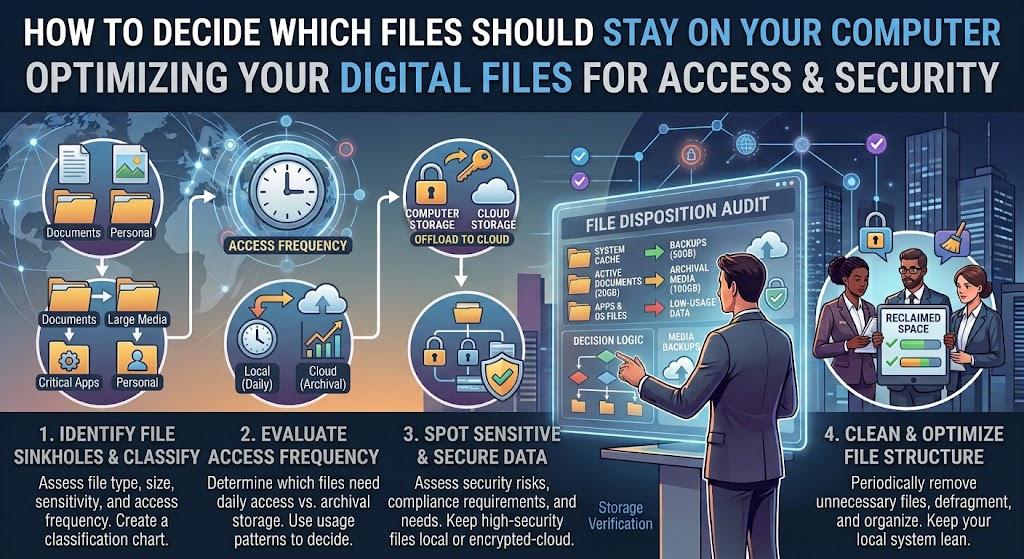
Running out of computer storage often creates a simple question: should you delete files from the computer and move them to the cloud?
Sometimes, yes.
But moving everything to the cloud is not automatically the best answer. Some files are much more useful when they are available locally. Others rarely need to occupy space on your computer at all.
The real challenge is deciding which files belong where.
A working document you open every morning is different from an old tax document you may need once a year. A large video project is different from a family photo archive. A software installer is different from a spreadsheet you need during a flight with no internet connection.
Cloud storage can make files available across devices and, with services that support online-only files, can reduce how much local disk space they consume. Google Drive for desktop, for example, supports streaming files so that most content remains in the cloud and only uses local space when needed, while OneDrive Files On-Demand can show cloud files in File Explorer without keeping their full contents on the computer.
But there is an important distinction to understand:
Cloud storage is not automatically the same thing as backup.
If a synchronized file is deleted, that deletion may synchronize elsewhere too. Microsoft specifically explains that deleting an online-only OneDrive file deletes it from OneDrive and other synchronized locations, although deleted items may be recoverable from the recycle bin for a limited period.
The safest approach is to decide where each type of file should live based on how often you use it, whether you need it offline, how important it is, and whether another independent copy exists.
Start With Four Questions
Before moving anything, ask four simple questions.
How often do I use this file?
Do I need it when I don’t have internet access?
How important would it be if I lost it?
Do I have another copy somewhere else?
These questions are more useful than simply sorting files by size.
A 20 MB spreadsheet that you need every day may deserve local storage more than a 5 GB video archive that you rarely open.
Likewise, an old document that is small but irreplaceable should not be moved somewhere without first confirming that it is safely stored and recoverable.
What Should Usually Stay on Your Computer?
Files that you work with frequently are strong candidates for local storage.
This includes documents you edit every day, active projects, frequently used spreadsheets, software development files, current photo projects, video projects you are actively editing, and other material where waiting for a download would interrupt your work.
Local storage also makes sense when you regularly work without an internet connection.
Imagine you’re traveling with your laptop and need to access an important presentation during a flight.
If the only copy is online and the file has not been made available offline, you may not be able to open it.
Google Drive’s streaming mode, for example, keeps files primarily in the cloud, but specific files can be made available offline when necessary.
OneDrive provides a similar choice through its Always keep on this device option. Files marked this way remain downloaded and available even without an internet connection.
The general rule is simple:
If you regularly need a file and cannot afford to wait for an internet connection, keep a local copy.
Keep Active Projects Local
Large projects deserve special attention.
Suppose you’re editing a video.
You may have:
- Original camera footage
- Audio recordings
- Project files
- Graphics
- Exported videos
- Temporary files
- Project backups
Putting every part of an active project into an online-only state may slow down your workflow or cause problems when applications expect files to be immediately available.
A better approach is to keep the current project locally while using cloud storage for additional protection, collaboration, or archival copies.
Once the project is finished, you can decide whether the completed material still needs to remain on the computer.
This creates a natural cycle:
Active project → local working copy + cloud protection → completed project → archive or cloud-only storage
That is much more useful than treating every file the same way.
Keep Files Local When You Frequently Edit Them
Files that you constantly open, save, and modify are often better candidates for local availability.
Think about a spreadsheet used throughout the workday.
You might technically be able to open it from the cloud each time, but if you’re repeatedly working on it, keeping it locally available can make the experience smoother.
The same applies to:
- Current writing projects
- Active presentations
- Current budgets
- Frequently updated spreadsheets
- Coding projects
- Design files
- Current school assignments
- Files used by desktop applications
Cloud synchronization can still be useful here.
The point is not to avoid the cloud.
The point is to avoid making your most frequently used files unnecessarily dependent on an internet connection.
What Files Are Good Candidates for Cloud-Only Storage?
Files you rarely open are often better candidates for online-only storage.
Examples include:
- Old completed projects
- Previous versions of documents
- Archived photographs
- Older videos
- Historical records
- Old school assignments
- Finished presentations
- Reference documents
- Previous years’ files
If you haven’t opened something for two years, there is a good chance it does not need to consume valuable local storage every day.
That does not mean the file is unimportant.
It simply means importance and local availability are two different decisions.
An old family photo may be extremely important but rarely needed on your computer.
That makes it a good candidate for cloud storage provided you have verified that the cloud copy exists and is accessible.
Don’t Use “Rarely Used” as the Only Test
There is an important exception.
Some files are rarely used but extremely important.
A property document might sit untouched for years.
A certificate may be needed only once.
An old family photograph may be viewed only a few times a year.
A business record may be required during an unexpected audit or dispute.
These files can still be moved off the computer, but you should think about redundancy.
For important files, the better question is not:
“Do I need this locally?”
It is:
“How many reliable copies do I have, and can I recover this file if my computer and cloud account both become unavailable?”
That is a much safer way to think about storage.
Important Files Should Not Exist in Only One Place
This is one of the biggest mistakes people make when organizing a computer.
They move everything to the cloud and assume the problem is solved.
It isn’t.
If an important file exists in only one location, you still have a single point of failure.
Cloud storage can protect against some hardware problems, but it does not make every possible loss scenario disappear.
Account problems, accidental deletion, synchronization mistakes, service outages, and other issues can still happen.
For irreplaceable files, consider maintaining another independent copy.
That could be an external drive, another backup system, or another appropriate storage location.
The exact setup depends on how valuable the files are.
The important principle is:
Don’t confuse “stored online” with “impossible to lose.”
Cloud Sync Can Be Different From Backup
This distinction deserves its own section because it causes so many storage mistakes.
Suppose you have a folder synchronized with OneDrive.
You delete a file from that synchronized folder.
The deletion can propagate to the cloud and other synchronized devices.
Microsoft’s documentation explicitly distinguishes between making a file online-only and deleting it. Making a file online-only frees local disk space without deleting the file from OneDrive, while deleting the file removes it from OneDrive and synchronized locations.
That means you should not solve a storage problem by simply deleting files from a synchronized folder unless you actually intend to remove them from the cloud library too.
If your goal is:
“Keep the file in the cloud but remove its local copy,”
use the cloud service’s storage-management feature instead.
OneDrive calls this Free up space.
Google Drive’s streaming mode provides a similar concept by keeping files primarily in the cloud rather than maintaining a complete local copy.
Use Online-Only Storage When Local Space Is the Problem
Cloud services have become more useful for this exact situation.
With OneDrive Files On-Demand, an online-only file can appear in File Explorer without occupying the full amount of local disk space. When you open it, the file can download for local use. You can later use Free up space to return it to an online-only state.
Google Drive for desktop offers a similar choice between streaming and mirroring.
With streaming, files primarily remain in the cloud and local storage is used when files are accessed or specifically made available offline.
With mirroring, files remain both in the cloud and on the computer, consuming local disk space.
This means you don’t necessarily have to choose between:
“local”
and
“cloud.”
You can sometimes have:
“visible on my computer, but stored primarily in the cloud.”
That is a much more flexible arrangement.
Which Files Should You Keep Available Offline?
A good offline collection should be relatively small and intentional.
Think about what you would need if the internet suddenly disappeared.
That might include:
- Current work documents
- Travel reservations
- Important contact information
- Current presentations
- Frequently used reference files
- Active projects
- Emergency documents
- Files needed during travel
- Frequently used templates
Don’t mark your entire cloud library as always available simply because it is convenient.
Doing so can quietly recreate the storage problem you’re trying to solve.
OneDrive specifically notes that files marked Always keep on this device download to the computer and take up local storage.
Photos Are a Special Case
Photos are often both important and large.
That makes them a good example of why storage decisions should not be based purely on file size.
You may not need your entire photo archive stored locally on your laptop.
If your cloud photo service has verified copies of your photographs, you may be able to keep only your current photo projects or favorite albums locally.
But don’t remove local copies simply because a cloud icon appears beside them.
First verify that:
- The photos have actually finished uploading.
- You are using the correct account.
- The cloud library contains the expected photographs.
- You can open the photographs from another device or the web.
- You understand whether your cloud service is synchronizing deletions.
- You have another backup if the photographs are irreplaceable.
For particularly valuable photographs, an independent backup is still worth considering.
Documents You Need for Emergencies Should Be Available Offline
Important documents deserve a different treatment from ordinary archives.
Imagine you are traveling and need:
- Identification-related paperwork
- Insurance information
- Booking confirmations
- Important contact information
- Work documents
- Copies of records
You don’t want to discover that every file is online-only while you’re standing somewhere without a reliable connection.
Keep the files you may genuinely need offline.
At the same time, be careful about leaving highly sensitive documents unprotected on a shared or unsecured computer.
Availability and security have to be considered together.
Large Media Archives Are Often Better Candidates for Cloud or External Storage
Video collections can become enormous.
Old projects, exported videos, recordings, and unused footage can consume hundreds of gigabytes.
If you rarely revisit the original files, keeping everything on your laptop may not be the best use of its storage.
You might instead use:
Cloud archive
or
External storage
or
Cloud + external backup
depending on how important the material is.
For irreplaceable footage, having only one copy in the cloud may not be enough.
For disposable recordings, you may not need multiple copies at all.
The decision should reflect the value of the content.
Don’t Forget About Software Installers and Downloads
Your Downloads folder often contains files that were useful once and forgotten afterward.
Examples include:
- Application installers
- ZIP files
- Temporary exports
- Old PDFs
- Downloaded videos
- Duplicate documents
- Compressed archives
These files are often easier to move or remove than personal records.
Before deleting them, ask whether you could obtain the file again if needed.
An old installer is usually replaceable.
An original personal photograph usually isn’t.
That difference should influence your decision.
A Simple Three-Level System Works Well
If you’re overwhelmed by thousands of files, don’t try to invent a complicated filing system.
Use three broad categories.
Keep Local
These are files you use regularly or need offline.
Examples include current projects, active documents, frequently used files, and travel material.
Cloud Available
These are files you want accessible across devices but don’t need occupying local disk space all the time.
Examples include older photographs, completed projects, reference files, and previous documents.
Archive
These are files you rarely need but don’t want to lose.
They might live on an external drive, in cloud storage, or preferably in more than one reliable location depending on their importance.
This simple system is often enough.
You don’t need to decide the permanent home of every file immediately.
Use File Size as a Secondary Decision
Large files deserve attention because they consume more space.
But size should not be your first decision factor.
Consider these two files:
2 MB — important legal document
5 GB — old video game recording
The second file is much larger.
The first file may be far more important.
If you automatically move the largest files to the cloud without considering importance, you can end up with a tidy hard drive but a poorly designed storage system.
A better order is:
Importance → frequency of use → offline need → storage size → backup status
That produces better decisions.
Check Your Internet Connection Before Going Cloud-Heavy
Cloud-first storage works best when your internet connection is reliable.
If your connection is slow, unstable, expensive, or frequently unavailable, you should keep more files locally.
This is particularly important if you work with large files.
Downloading a small document is one thing.
Downloading a 20 GB video project every time you need to work on it is something else.
Cloud storage can save local disk space while creating greater dependence on network access.
You need to decide whether that trade-off works for you.
Think About Travel
Your normal storage setup at home may not work when you’re traveling.
Before leaving, identify the files you may need without reliable internet.
Make them available offline.
Open a few of them while disconnected if possible.
This is better than discovering at the airport, hotel, or airplane that an important document was only available online.
Google Drive and OneDrive both provide ways to designate cloud files for offline availability.
The same principle applies to other cloud platforms.
Be Careful When Moving Desktop and Documents Folders
Windows and macOS can integrate cloud services into common folders such as Desktop and Documents.
This can be convenient, but it can also make users forget where their files actually live.
Microsoft’s OneDrive documentation explains that OneDrive can back up standard Windows folders such as Desktop, Documents, Pictures, Music, and Videos.
Apple’s iCloud Drive can also integrate with Mac storage and provides an Optimise Mac Storage option that can help manage local disk usage.
Before changing these settings, understand exactly what will happen.
Do not assume that moving a folder into a cloud-synchronized location is the same as creating a separate backup.
Don’t Delete the Local Copy Until You Verify the Cloud Copy
This is perhaps the most important practical rule in the entire process.
If you want to move a file from local storage to the cloud, don’t immediately delete the original.
First upload it.
Then wait for synchronization to finish.
Then open the cloud version.
If possible, verify it from another device or through the provider’s web interface.
Only after you’ve confirmed the cloud copy is usable should you consider removing the local copy.
For a large batch of files, test a small group first.
Move 10 files.
Verify them.
Then continue.
This catches account, synchronization, permission, and configuration problems before they affect hundreds or thousands of files.
What If the Cloud Storage Is Full?
Moving files to the cloud does not solve anything if the cloud account has insufficient capacity.
Apple notes that iCloud Drive shares iCloud storage with other services such as iCloud Photos, device backups, messages and attachments, and iCloud Mail.
Other providers have their own storage limits and usage rules.
Before moving a large archive, check how much cloud storage remains.
Otherwise you may start a transfer that cannot finish.
A Practical Decision Tree
When you’re looking at a file, ask:
Do I use it frequently?
If yes, keep it locally available.
Do I need it without internet?
If yes, keep a local copy or mark it available offline.
Is it important but rarely used?
Store it safely in the cloud and consider an additional backup.
Is it large and rarely used?
Cloud or external archive storage may make more sense than keeping it on the computer.
Is it replaceable?
You may not need multiple copies.
Is it irreplaceable?
Keep more than one reliable copy.
Is it actively being edited?
Keep the working copy locally available.
Is it finished and rarely accessed?
Consider moving it out of your main local workspace.
This decision tree is simple enough to use repeatedly.
A Safer File-Moving Workflow
Before moving a large collection, create a small test.
Choose perhaps 5–10 files.
Upload or move them to the cloud.
Wait for synchronization.
Open them from the cloud.
Check that the files are complete.
Then test what happens when the local copy is made online-only.
Open one again to confirm you understand how the service behaves.
Once you are comfortable, continue with the larger collection.
This is especially useful when setting up OneDrive Files On-Demand, Google Drive streaming, or iCloud storage optimization because the exact behavior differs between services.
A Good Hybrid Setup for Most People
For many computer users, the best solution isn’t “everything local” or “everything in the cloud.”
It’s a hybrid.
Keep current work locally.
Keep frequently used files locally.
Keep travel and emergency files available offline.
Keep older and rarely used files in the cloud.
Keep large archives in the cloud or on external storage.
Keep irreplaceable files in at least two reliable locations.
Keep temporary downloads and replaceable files only as long as they are useful.
This gives you quick access where it matters without filling the computer with years of unused data.
Review Your Storage Every Few Months
Your storage needs change.
A project that was active six months ago may now be finished.
A folder that was once important may now be an archive.
A large local collection may no longer need to stay downloaded.
Set aside a little time every few months to review:
What am I actively working on?
What haven’t I opened recently?
What needs to be available offline?
What is already safely stored elsewhere?
Which folders are consuming the most local space?
This small habit prevents your computer from slowly becoming a warehouse.
Final Thoughts
The best place for a file isn’t determined by whether the file is “important” or “large.”
It depends on how you use it.
Files you work with frequently should usually remain available locally. Files you rarely need can often be stored primarily in the cloud. Files needed during travel should be available offline. Irreplaceable files deserve additional protection rather than simply being moved to one cloud account.
Modern services make this more flexible than it used to be. Google Drive can stream files primarily from the cloud, while OneDrive Files On-Demand can keep files visible in File Explorer without requiring their full contents to occupy local disk space.
But remember the most important distinction:
Moving a file to the cloud is a storage decision. Protecting a file from loss is a backup decision.
Sometimes those two goals overlap.
They are not always the same.
If you make that distinction before reorganizing your computer, you can free up local storage without turning your cloud account into another confusing file dump.
Frequently Asked Questions
Should I keep important files on my computer or in the cloud?
For important files, consider keeping them in both places when practical. If a file is important but rarely used, it can be primarily stored in the cloud while an additional backup is kept elsewhere. Avoid relying on a single location for irreplaceable data.
Does putting a file in OneDrive remove it from my computer?
Not necessarily. OneDrive can keep files locally available or make them online-only through Files On-Demand. An online-only file remains visible in File Explorer but does not take up the same local disk space as a downloaded copy.
Does Google Drive store all my files on my computer?
It depends on whether Google Drive for desktop is configured for streaming or mirroring. Streaming primarily stores files in the cloud and uses local storage when files are accessed or made available offline. Mirroring keeps a complete local copy and therefore uses more disk space.
Should I keep photos locally if they are already in the cloud?
You can reduce local copies if the cloud library has been verified and you understand how synchronization works. However, irreplaceable photographs should ideally have an additional backup rather than existing in only one cloud account.
What files should always be available offline?
Keep files available offline when you regularly need them without reliable internet access. Current work, travel documents, important reference files, presentations, active projects, and essential records are common examples.
Is cloud storage a backup?
Not automatically. A synchronized cloud folder can mirror changes, including deletions. Cloud storage can be part of a backup strategy, but important files should be protected with an appropriate backup arrangement rather than assuming synchronization alone is sufficient. Microsoft’s OneDrive documentation, for example, distinguishes between making a file online-only and deleting it from the synchronized service.
Recommended Screenshots and Visuals
After the section “Use Online-Only Storage When Local Space Is the Problem”: Show a genuine OneDrive Files On-Demand example with the cloud, locally available, and always-available status icons.
After the Google Drive section: Show Google Drive for desktop’s streaming/mirroring settings.
After “Don’t Delete the Local Copy Until You Verify the Cloud Copy”: Show a simple example of a file appearing both locally and in the cloud, followed by a verification step.
After “A Good Hybrid Setup for Most People”: A simple diagram showing:
Computer → Current files / Offline files
Cloud → Older / less frequently used files
Backup → Irreplaceable files
Use genuine current screenshots from the relevant operating system or cloud provider. Avoid fabricated interface screenshots.
Sources and Further Reading
- Google Drive Help — streaming and mirroring files with Drive for desktop.
- Google Drive Help — making files available offline.
- Microsoft Support — OneDrive Files On-Demand and managing local disk space.
- Microsoft Support — deleting files and understanding the difference between online-only storage and deletion.
- Microsoft Support — syncing computer folders with OneDrive.
- Apple Support — storing files in iCloud Drive and optimizing Mac storage.