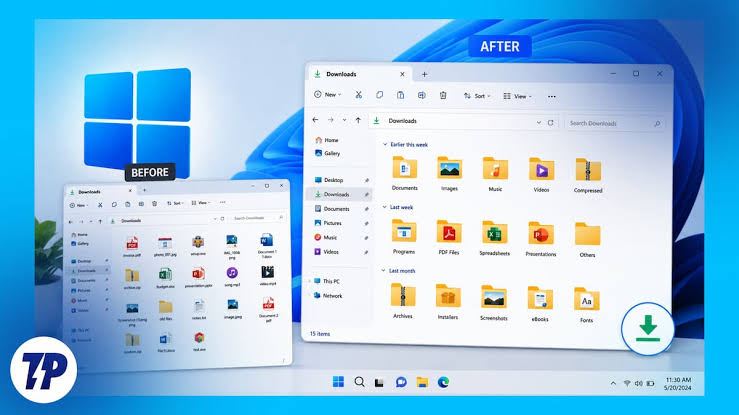
The Downloads folder has a way of becoming a digital junk drawer.
One day you save a PDF you need for work. The next day you download a photo, an installer, a form, a ZIP file, a spreadsheet, and three copies of the same document. A few months later, there may be hundreds of files sitting together with names you barely recognize.
The obvious solution is to select everything and delete it.
That is also one of the easiest ways to remove something you eventually need.
A better cleanup process treats your Downloads folder as a temporary landing area, not permanent storage. You review what is there, identify anything important, move files that deserve a proper home, and only then remove items you are confident you no longer need.
Windows and macOS both provide ways to manage storage by reviewing large files and Downloads, but automated cleanup should be used carefully because a Downloads folder can contain personal files that are still useful. Microsoft specifically allows Storage Sense to delete Downloads files based on how long they have gone unopened if you configure that option, while Apple’s storage guidance also identifies the Downloads folder as an area users can review when freeing Mac storage.
Why the Downloads Folder Becomes Difficult to Manage
The problem usually isn’t the number of files.
It’s that different types of files end up mixed together.
You might have:
- documents you still need
- files you already copied somewhere else
- installers you can download again
- duplicate downloads
- temporary files
- old PDFs
- images
- ZIP archives
- spreadsheets
- exported reports
- files you don’t remember downloading
- files that should have been moved into Documents, Pictures, or another folder
When all of these live together, deleting becomes uncomfortable.
You can’t tell which files are disposable and which ones have a purpose.
That’s why the first step should be understanding what you have, not deleting anything.
Don’t Start by Selecting Everything
It is tempting to open Downloads, press Ctrl+A or Command+A, and move everything to the Trash.
Don’t.
Even if most of the files look old, age alone doesn’t tell you whether a file is useful.
A tax document from two years ago could still matter. An old project archive could contain information you need later. A downloaded installer might be unnecessary, but a PDF sitting beside it could be the only copy of an important document.
Instead, work in batches.
Start with the oldest files or the largest files. Review a manageable group, make decisions, and then continue.
This takes longer than deleting everything at once, but it greatly reduces the chance of removing something important.
First Find Out What Is Actually in the Folder
Before moving anything, change the folder view so that you can see useful information.
On Windows, File Explorer can show details such as file name, type, date, and size. Microsoft recommends using Details view and sorting by size when identifying files that may be taking up significant storage.
On a Mac, Finder provides similar information when browsing Downloads.
The goal isn’t to memorize every file.
You’re looking for patterns.
You might discover that:
- most files are PDFs
- dozens are old installers
- several files have nearly identical names
- a few videos are using most of the space
- there are documents from an old project
- many files haven’t been opened in months
Once you can see those patterns, cleanup becomes much easier.
Sort by Date Before You Sort by Importance
Sorting by date can help you understand how the clutter accumulated.
Start with the oldest files.
But don’t automatically delete them.
Instead, ask:
What is this file?
Then:
Why did I download it?
Then:
Would I need the original file again?
Finally:
Is there another copy somewhere I trust?
That last question is particularly important.
A file may look unnecessary because you remember seeing it in an email or cloud service. But seeing another copy somewhere doesn’t always mean you have a reliable copy you can access later.
If the file matters, verify the other copy before deleting the Downloads version.
Create Three Temporary Categories
You don’t need a complicated folder structure.
For the cleanup itself, create three temporary categories:
Keep
Move
Delete
You can create temporary folders inside Downloads if that makes the process easier.
For example:
Downloads/Review – Keep
Downloads/Review – Move
Downloads/Review – Delete
Move files into these groups as you review them.
This is safer than deleting immediately because uncertain files have somewhere to go.
If you aren’t sure about a file, don’t force yourself to decide.
Put it in Review Later instead.
That one folder can prevent a lot of accidental deletion.
Move Important Files to Their Proper Home
Downloads shouldn’t become the permanent home for everything you want to keep.
If a document belongs with your other documents, move it to Documents.
If an image belongs with your photos, move it to Pictures or your preferred photo library.
If a project has its own folder, put the file there.
If you downloaded a report for a particular project, store it with that project.
The exact folder structure is less important than having a clear destination.
For example:
Downloads
Temporary landing area.
Documents
Important documents and personal records.
Pictures
Photos and images.
Projects
Files related to ongoing work.
Archive
Older material you want to retain but rarely use.
The important idea is that a file should have a reason for staying on your computer.
Be Careful With Files That Exist Somewhere Else
This is where cleanup can become surprisingly risky.
Suppose you have:
invoice.pdf
in Downloads.
You also see the same invoice in an email.
It might seem safe to delete the downloaded copy.
Before doing so, consider whether the copy in the email is actually accessible and whether it contains the same version.
The same applies to cloud storage.
A file that appears in OneDrive, Google Drive, iCloud Drive, Dropbox, or another service may be synchronized rather than independently backed up.
If the file is important, verify the cloud copy before deleting your local copy.
Better still, open the file from the other location and confirm that it contains the information you expect.
Don’t Confuse a Downloaded File With an Installer You Need
Downloads folders often contain software installers.
Examples include:
.exe
.msi
.dmg
.pkg
and similar installation files.
If the program is already installed and you know you can safely obtain the installer again from the official source, the downloaded installer may not need to remain in Downloads.
But don’t assume every installer is disposable.
You might have downloaded an offline installer for a specific version, a driver package, a recovery utility, or software you don’t easily obtain again.
Before deleting an installer, ask:
Can I get this exact file again if I need it?
If yes, deleting it may be reasonable.
If you’re not sure, archive it or leave it alone until you’ve confirmed.
Treat ZIP Files Differently
ZIP and other archive files deserve a quick inspection before deletion.
An archive may contain:
- documents
- photographs
- project files
- software
- backups
- exported data
- multiple folders
The filename might not tell you what is inside.
If you see something like:
project-final.zip
don’t delete it simply because it is old.
Open the archive if necessary and determine whether its contents exist somewhere else.
If the archive contains an older version of files that are already safely stored elsewhere, you may not need it.
If it contains the only copy of something important, move it to an appropriate archive location.
Watch for Duplicate Downloads
Duplicate files are common in Downloads.
A browser may create names such as:
report.pdf
report (1).pdf
report (2).pdf
That doesn’t automatically mean they are identical.
The files could be:
- exact duplicates
- different revisions
- renamed copies
- partially updated documents
- different downloads with the same filename
Compare the files before deleting one.
For documents, check the contents.
For photos, compare the image and resolution.
For larger files, comparing file size and modification date can provide clues, but those details alone don’t prove that two files are identical.
If you aren’t sure, keep the files temporarily and investigate later.
Don’t Delete a File Just Because You Haven’t Opened It Recently
This is one of the most important rules.
A file can be old and still valuable.
A passport scan, warranty document, old contract, property record, certificate, receipt, or project archive may sit untouched for years.
That doesn’t make it junk.
Windows Storage Sense includes an option to automatically delete files in Downloads that haven’t been opened for a selected period, but Microsoft makes clear that Downloads is not managed by default unless you configure that behavior.
For this reason, automatic deletion based only on age deserves caution.
A better rule is:
Old + replaceable + no longer useful = possible deletion.
Old + important + difficult to replace = keep or archive.
Create an Archive for Files You Rarely Need
Some files don’t belong in your everyday folders but are still worth keeping.
That’s where an archive can help.
For example:
Documents/Archive/2024
Projects/Archive/Old Projects
Personal/Records
The exact arrangement is up to you.
The important thing is to move long-term files out of Downloads.
This gives you a cleaner working folder without forcing you to throw away information.
If the archive contains irreplaceable files, make sure it is also included in your normal backup system.
An archive stored on only one failing drive isn’t a reliable archive.
Check File Extensions Before Deleting Anything
Sometimes the filename doesn’t tell you enough.
A file called:
document
could actually be a PDF, Word document, spreadsheet, image, or another type.
On Windows, you can configure File Explorer to display file name extensions. Seeing .pdf, .docx, .xlsx, .jpg, .zip, .exe, and other extensions can make it easier to understand what you’re looking at.
This is especially useful when suspicious or unfamiliar files appear in Downloads.
If you don’t recognize a file, don’t open it simply because you’re curious.
If you believe it may be malicious, use your device’s security tools and investigate it safely rather than treating Downloads as a testing area.
Be Careful With Unknown Files
A Downloads folder can contain files you don’t remember downloading.
Don’t assume they are harmless.
A strange file could have been downloaded automatically, included with another download, or saved from a website without you realizing it.
If you don’t recognize a file:
- Don’t open it immediately.
- Look at its name and extension.
- Consider when it appeared.
- Check your browser’s download history.
- Think about which website or application may have created it.
- Scan suspicious files with your security software.
- Delete it if you establish that you don’t need it.
The point is not to become frightened by every unfamiliar file.
It’s simply to avoid opening unknown files without a reason.
Check Your Browser’s Download History
Your Downloads folder tells you what was saved.
Your browser’s download history can sometimes tell you where it came from.
Chrome, for example, lets you change the default download location or choose where each file should be saved.
If you see an unfamiliar file in Downloads, checking your browser history may help explain its origin.
This is particularly useful when you find files with generic names.
You may discover that the file came from a website you visited months ago, an email attachment, a software download, or a document you had completely forgotten about.
Knowing the source makes the keep-or-delete decision easier.
Change Your Browser So Future Downloads Don’t Become a Mess
Cleaning the folder once won’t solve the problem if every new download goes into the same pile.
Chrome allows you to change the default download location or enable an option that asks where to save each downloaded file.
You don’t necessarily need to choose a complicated system.
One simple approach is:
Downloads = temporary files
Then, when you download something you intend to keep, move it immediately.
For example, after downloading a PDF you need for a project, move it to that project’s folder.
After downloading a personal document, move it to your Documents area.
After downloading a photo you want to keep, put it in your photo library or Pictures folder.
The goal is to make Downloads a short-term staging area.
Consider a “Downloads Review” Routine
You don’t need to clean the folder every day.
A small routine once a week or once a month may be enough.
During the review:
Open Downloads.
Remove obvious temporary files.
Move important documents.
Review large files.
Check duplicate downloads.
Move older files to an archive.
Leave uncertain files alone until you can identify them.
This is much easier than waiting until the folder contains thousands of files.
It also changes the way you think about Downloads.
Instead of asking:
“How do I clean this disaster?”
you’re simply processing a small queue.
Don’t Use Automatic Cleanup Until You Understand It
Automatic cleanup tools can be useful, but they should be configured deliberately.
Windows Storage Sense can automatically remove temporary files and can be configured to delete Downloads files that haven’t been opened for a specified period.
That’s convenient if Downloads truly contains only replaceable temporary files.
It’s risky if you routinely keep important documents there.
Before enabling automatic deletion, ask:
Would I be comfortable losing any file in Downloads that I haven’t opened recently?
If the answer is no, don’t configure automatic Downloads deletion.
Instead, use automation for less risky temporary data and handle personal files manually.
Don’t Forget the Recycle Bin or Trash
Moving files to the Recycle Bin or Trash doesn’t necessarily free the storage immediately.
Microsoft notes that deleted files need to be removed from the Recycle Bin to completely free that space. Apple similarly notes that files moved to the Trash continue using storage until the Trash is emptied.
But don’t rush to empty it.
The Recycle Bin or Trash can act as a short-term safety net if you accidentally remove something.
After your cleanup, give yourself some time to make sure everything you moved or deleted was intentional.
Then empty it when you’re confident.
For particularly important files, don’t rely on the Trash as your backup system.
If You’re Freeing Space, Sort by Size
If the main reason you’re cleaning Downloads is to recover storage, don’t necessarily start with the oldest files.
Start with the biggest ones.
A few large videos, ZIP archives, installers, or disk images can consume more space than hundreds of small documents.
Microsoft specifically recommends sorting files by size when looking for large files that can be moved or deleted.
This lets you target the files that actually make a difference.
Deleting 200 tiny PDFs might barely change your available storage.
Removing one large video you no longer need could make a much bigger difference.
If You Move Files, Verify the Destination
Moving an important file should not be a blind drag-and-drop operation.
After moving it, open the destination folder and confirm that the file is there.
If you moved an important document to an external drive, verify that you can open it from that drive.
Microsoft recommends verifying that files were copied correctly to external storage before disconnecting the drive.
This matters because a cleanup isn’t successful if you remove the original and later discover that the replacement copy never worked.
For particularly important files, don’t just verify that the filename exists.
Open the file.
Check that the contents are intact.
A Simple Decision Test for Every File
If you don’t know what to do with a file, ask these five questions:
What is it?
If you don’t know, investigate before deleting.
Do I still need it?
Think about whether the information has a current purpose.
Can I get it again?
Some downloads are easily replaceable. Others aren’t.
Is there another verified copy?
Don’t assume. Check.
Where should it live?
If it matters, move it out of Downloads and into a proper location.
If the answers are:
“I don’t know what it is,”
“I might need it,”
“I can’t easily replace it,”
or
“I don’t know whether another copy exists,”
then don’t delete it yet.
Uncertainty is a perfectly good reason to postpone deletion.
A Better Downloads Folder System
Once you’ve cleaned the folder, make the system easier to maintain.
A useful rule is:
Download → Review → Move or Delete
When a new file arrives, decide what happens to it.
If it’s temporary, leave it in Downloads until you’re finished.
If it’s important, move it.
If it’s useless, delete it.
If you don’t know yet, leave it for your next review.
You can also change your browser’s settings so that it asks where to save files. Chrome supports this option directly.
That can prevent important documents from disappearing into Downloads in the first place.
A Safe Cleanup Workflow
If your Downloads folder is already packed with files, use this order.
Step 1: Back up anything important
If you have irreplaceable files in Downloads, make sure they are included in your normal backup system before starting a large cleanup.
Step 2: Change the folder to a useful view
Show file names, types, dates, and sizes.
Step 3: Sort by size
Review the biggest files first if you’re trying to recover storage.
Step 4: Sort by date
Look at older files and determine why they’re still there.
Step 5: Create temporary review folders
Use Keep, Move, Delete, and Review Later if helpful.
Step 6: Move important files
Put documents, photos, projects, and archives where they belong.
Step 7: Investigate duplicates
Don’t assume files with similar names are identical.
Step 8: Check unknown files
Use browser history and security tools when you don’t recognize a download.
Step 9: Delete obvious temporary files
Only after you’ve confirmed they aren’t needed.
Step 10: Wait before emptying Trash
Give yourself an opportunity to catch mistakes.
Step 11: Create a future routine
Decide when you’ll review Downloads again.
The process becomes much easier once the folder stops being a permanent storage location.
What Not to Delete Without Checking
Be especially careful with:
Personal documents
Scanned records, certificates, receipts, contracts, forms, and other files that may be difficult to replace.
Financial documents
Statements, tax documents, invoices, and transaction records.
Project archives
Older project files may still contain information that isn’t stored elsewhere.
Original media
Photos, videos, audio recordings, and other files that may be the only original copy.
Recovery or installation files
Some may be replaceable, but others may have been downloaded for a specific device or software version.
Encrypted archives
Don’t delete them simply because you can’t easily see what’s inside.
Files you don’t recognize
Investigate before opening or deleting.
The safest cleanup isn’t the one that produces the emptiest Downloads folder.
It’s the one that leaves you knowing where your important files actually are.
Final Thoughts
A clean Downloads folder isn’t about having zero files.
It’s about knowing why the files that remain are there.
Some downloads are temporary. Some are useful documents. Some belong in another folder. Some should be archived. Some can safely disappear.
The mistake is treating all of them as the same.
Start by preserving anything important. Review files by type, age, size, and purpose. Move files that deserve a permanent home. Keep uncertain items until you can identify them. Verify other copies before deleting originals, and be careful with automatic cleanup settings.
Most importantly, make Downloads a temporary landing zone rather than a permanent filing cabinet.
Once you adopt that habit, future cleanups become much smaller and much safer.
Sources and Further Reading
Microsoft Support — Manage drive space with Storage Sense: Explains Storage Sense, Downloads cleanup settings, and how automatic cleanup handles Downloads.
Microsoft Support — Free up drive space in Windows: Covers sorting files by size, moving personal files to external storage, Cleanup recommendations, and Recycle Bin behavior.
Microsoft Support — Move files to a new Windows PC: Explains copying files to external storage and verifying them before disconnecting the drive.
Google Chrome Help — Download a file: Explains Chrome’s default download locations and how to change the location or ask where each file should be saved.
Apple Support — Free up storage space on Mac: Includes Downloads among the locations that can be reviewed when freeing Mac storage and explains how Trash affects available space.
Frequently Asked Questions
Is it safe to delete everything in my Downloads folder?
Not automatically. Downloads can contain important documents, original files, archives, and other information you may need later. Review the files first and verify important copies before deleting anything.
How old should a downloaded file be before I delete it?
There is no universal safe age. An old file can still be important, while a file downloaded yesterday may already be useless. Consider whether you need it, whether it can be replaced, and whether another verified copy exists.
Can I use Windows Storage Sense to automatically clean Downloads?
Yes, but Downloads cleanup must be configured. Windows allows Storage Sense to delete files in Downloads that have not been opened for a selected period. If you store important files there, automatic deletion may not be appropriate.
Should I move important files out of Downloads?
Usually, yes. Downloads works better as a temporary landing area. Move documents, photos, project files, and other information you intend to keep into folders where you can find and back them up more reliably.
How can I find the files taking up the most space?
Sort the Downloads folder by file size. On Windows, Microsoft specifically recommends using Details view and sorting by Size when looking for large files.
What should I do with a file I don’t recognize?
Don’t open it simply to find out what it is. Check its file type, approximate download date, browser download history, and security status. If you determine that you don’t need it, remove it safely; if you’re unsure, keep it in a review folder until you can identify it.