A slow phone does not always need a factory reset or a new battery.
Sometimes one badly behaved app is responsible. Sometimes the phone is nearly out of storage. Sometimes a setting, software update, network condition, or power-saving feature makes the phone feel slower than usual. And sometimes the hardware really is reaching the point where it can no longer deliver the performance you expect.
The difficult part is figuring out which problem you actually have.
That matters because the wrong fix can waste time. Deleting photos will not necessarily fix an app that freezes every time you open it. Replacing a battery will not solve a phone that is simply running out of storage. And buying a new phone makes little sense if a recently installed app is the real cause.
A better approach is to diagnose the slowdown before changing too many things.
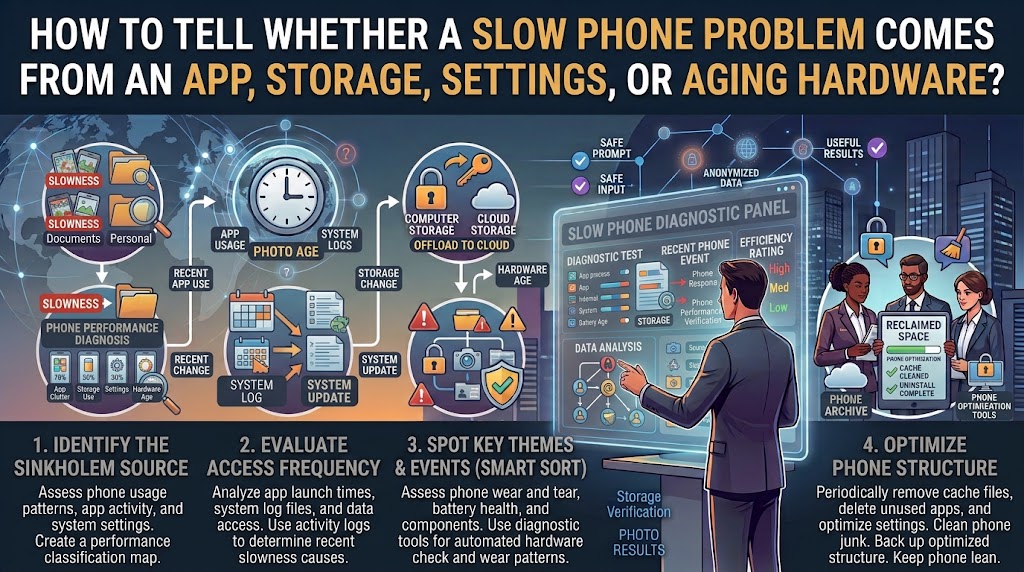
This guide shows how to separate the most common causes: apps, storage, settings and software, network conditions, and aging hardware.
The exact menus differ between Android phones and iPhones, and manufacturers sometimes add their own tools. Use the names below as a guide rather than assuming every phone will show exactly the same options.
First, Define What “Slow” Actually Means
Before troubleshooting, describe the problem more precisely.
A phone that takes several seconds to open an app is experiencing a different problem from a phone where only websites load slowly.
Likewise, a phone that becomes sluggish after 20 minutes of gaming may have a different cause from one that is slow immediately after every restart.
Ask yourself:
Is the entire phone slow, or only one app?
Did the problem begin recently, or has it gradually become worse?
Is the phone slow immediately after restarting?
Does it become worse when the phone gets warm?
Does the problem happen only when connected to mobile data or Wi-Fi?
Did you recently install or update an app?
Is the phone almost full?
Does the problem change when the battery is low or Low Power Mode is enabled?
These observations are more useful than simply saying, “My phone is old and slow.”
Start With a Restart, but Don’t Stop There
Restarting is a reasonable first diagnostic step because it gives you a clean starting point.
After the phone restarts, use it normally for a few minutes.
Open the same apps that were previously slow. Scroll through the same screens. Try the same task that originally exposed the problem.
If the phone becomes normal after restarting but gradually slows again, that is useful evidence.
It suggests that something accumulating during normal use may be involved, such as an app, background activity, heat, or another temporary software condition.
If the phone is already slow immediately after a restart, pay more attention to storage, system software, hardware, or a persistent app problem.
Google’s Android troubleshooting guidance recommends restarting when diagnosing slow or unstable devices and then checking updates, storage, and apps.
Apple similarly recommends restarting as part of troubleshooting iPhone and iPad performance problems.
A restart is therefore useful as a diagnostic checkpoint, not a complete repair.
Check Whether One App Is the Real Problem
One of the easiest clues is whether the slowdown follows a particular app.
Imagine your phone feels normal when browsing settings, reading messages, and using the camera.
Then you open one particular social-media, shopping, gaming, or editing app and everything becomes sluggish.
That points in a different direction from a phone that is slow everywhere.
Look for a repeatable pattern
Open the suspected app several times.
Does it consistently:
- Take much longer to open?
- Freeze?
- Become unresponsive?
- Make scrolling jerky?
- Crash?
- Cause the phone to become hot?
- Make other apps slow immediately afterward?
If the answer is yes, investigate that app before changing the entire phone.
On Android, Google recommends updating problematic apps, force-stopping them when appropriate, clearing their cache or data when necessary, and uninstalling an app if troubleshooting does not resolve the problem.
Be careful with Clear storage or equivalent options, though. Clearing an app’s stored data can remove information saved inside that app. Google’s documentation distinguishes this from clearing cache, which removes temporary data.
Test after updating
If an app recently started behaving badly, check whether an update is available.
Also check for an operating-system update.
A problem that appears after an app or system update may require a later update from the developer or manufacturer rather than a complicated cleanup routine.
Do not automatically assume that every update makes a phone slower. Look at what actually changed and whether the problem appeared around the same time.
Use Safe Mode on Android When You Suspect an App
Android provides a particularly useful diagnostic test: Safe Mode.
In Safe Mode, downloaded apps are temporarily disabled. The exact method for entering Safe Mode varies between manufacturers, so use the instructions for your particular phone.
The important part is what happens afterward.
Use the phone normally for a while.
If the slowdown disappears in Safe Mode, a downloaded app becomes a strong suspect.
If the phone remains slow even with downloaded apps disabled, the problem is less likely to be caused by an ordinary third-party app.
Google specifically recommends Safe Mode as a way to determine whether a downloaded app is causing problems such as freezing, crashing, or running slowly.
This is much better evidence than uninstalling random apps one at a time.
If Safe Mode makes the phone normal, think about what you installed or updated recently. Remove likely candidates one at a time and test the phone again.
Do not remove ten apps simultaneously if you want to know which one caused the problem.
iPhone Users Need a Different App Test
iPhone does not provide the same general Safe Mode workflow used by Android.
Instead, look for a problem that consistently follows a particular app.
If one app repeatedly freezes or takes unusually long to respond while other parts of the phone work normally, update the app and iOS, then troubleshoot or reinstall the individual app if appropriate.
Also remember that repeatedly force-closing every app is not a good general speed-up strategy.
Apple says unnecessary force-closing can actually make the device slower because apps take longer to reload their data when reopened.
So don’t turn the app switcher into a daily cleaning ritual.
Check Storage Before Blaming the Hardware
Storage is one of the easiest things to check and one of the most frequently overlooked.
On Android, open the phone’s storage settings and see how much space remains.
Google says Android phones can begin experiencing issues when less than 10% of storage is free.
That does not mean every phone suddenly becomes slow at exactly 10%.
Think of it as a warning point rather than a universal performance threshold.
On iPhone, go to:
Settings → General → iPhone Storage
Apple currently recommends maintaining at least 1 GB of free space to help avoid slowdowns.
The important thing is not to compare the Android and iPhone numbers as though they are the same rule. They are platform-specific guidance.
Look at what is actually using the space
Do not simply delete random photos because the phone says storage is almost full.
Find the categories consuming the most space.
You may discover:
- Large videos
- Offline downloads
- Messaging attachments
- Games
- Social-media app data
- Podcasts
- Music downloads
- Camera files
- Old documents
- Large apps you rarely use
On iPhone, the storage screen lists apps and their storage usage and may provide recommendations such as offloading unused apps.
On Android, storage tools can help identify large files and unused apps, and some devices support app archiving.
Don’t Confuse Storage With Memory
This causes a lot of unnecessary troubleshooting.
Storage is where the phone keeps things such as photos, apps, downloads, and other data.
Memory, commonly called RAM, is used while apps and the operating system are running.
Google explicitly distinguishes storage from memory in its Android guidance.
A phone can have plenty of free storage and still struggle with demanding applications.
Likewise, a phone can have adequate RAM but be nearly full of local storage.
So if an article or app tells you to “free memory” by constantly closing everything, be careful.
The useful question is not:
“How do I make the memory number look empty?”
It is:
“What resource is actually limiting this task?”
Check Whether the Problem Is Really the Internet
Sometimes a phone is not slow at all.
The internet connection is slow.
This is particularly easy to mistake when using:
- Web browsers
- Social-media apps
- Cloud storage
- Streaming services
- Online games
- Maps
- Apps that load content from the internet
If menus and offline apps respond normally but online content takes a long time to load, investigate the connection.
Try the same task over a reliable Wi-Fi connection and then over mobile data.
If performance changes dramatically between the two, the network is part of the problem.
Apple specifically notes that network congestion and cellular connection changes can make apps appear slow even when the device itself is not the underlying problem.
This distinction can save you from deleting apps or performing a factory reset for a problem caused by your connection.
Check Whether a Setting Is Limiting Performance
Some settings intentionally trade performance or background activity for battery life.
On iPhone, Low Power Mode reduces power consumption and can cause certain features to work more slowly. Apple recommends turning it off when you need the device to operate without those low-power restrictions.
So if your phone suddenly feels different after enabling a battery-saving mode, test it with the mode disabled.
The same general idea applies to Android devices, although the names and behavior of battery-saving modes vary between manufacturers.
Do not assume every battery-saving setting behaves identically.
Check your specific phone’s documentation when a performance-related setting is involved.
Temperature Can Make a Phone Feel Slow
Heat is another important clue.
If the phone performs normally when cool but becomes sluggish after prolonged gaming, video recording, charging, direct sunlight, or other demanding activity, temperature may be involved.
Apple states that iPhones and iPads can run slower when they become too hot or too cold.
This is different from a phone that is slow all day regardless of temperature.
Try comparing performance:
When the phone is cool
versus
After sustained heavy use
If the difference is large, don’t immediately assume the processor is permanently failing.
Give the phone time to return to a normal temperature and test again.
Also avoid deliberately overheating the phone as a “test.”
Check the Battery on Older iPhones
Battery condition can become an important clue on aging iPhones.
Apple explains that rechargeable batteries chemically age over time and can lose their ability to deliver peak power. Depending on the battery condition and workload, this can contribute to longer app launch times and lower frame rates.
On supported iPhones, you can check:
Settings → Battery → Battery Health
Look at the reported battery condition and any performance-related message shown there.
A degraded battery does not automatically mean the phone needs to be replaced.
If the phone otherwise meets your needs, battery service may be worth considering.
Apple specifically notes that replacing an aged battery can improve performance when battery aging is contributing to the problem.
This is one reason it is better to diagnose before buying a new phone.
What About Aging Android Hardware?
Android phones do not have one universal battery-health and performance system across all manufacturers.
Samsung, Google, Xiaomi, Motorola, OnePlus, and other manufacturers may expose different battery and diagnostic information.
That means you should be cautious with generic claims such as:
“Your Android phone is slow because the battery is old.”
The battery may be part of the problem, but you need evidence.
Look for a pattern involving:
- Shorter battery life
- Unexpected shutdowns
- Heat
- Slow performance under heavy load
- Problems that appeared gradually as the phone aged
- Manufacturer diagnostic warnings
- Battery-health information where your manufacturer provides it
If your phone has a built-in diagnostic tool, use the manufacturer’s documentation rather than installing an unknown “phone booster” app.
Signs That Point Toward Aging Hardware
Hardware becomes more likely when the problem is broad, persistent, and not tied to one application.
For example, suppose the phone is slow immediately after restarting.
You have plenty of free storage.
The operating system and apps are updated.
The same slowdown appears across several unrelated applications.
The phone becomes sluggish even during basic tasks.
Safe Mode does not improve the problem on Android.
The problem has gradually become worse over a long period.
That combination is more concerning for hardware limitations or age-related degradation than a single misbehaving app.
It still does not prove that a particular component has failed.
But it tells you where to investigate next.
New Apps Can Make an Old Phone Feel Older
There is another factor that can look like hardware failure.
The phone itself may not have changed, but the software you use has.
Modern apps can become more demanding over time. A phone that handled an application comfortably several years ago may struggle with newer versions, larger media files, more complex interfaces, or more demanding games.
This does not necessarily mean the hardware is defective.
It may simply mean the phone’s performance margin has become smaller.
Look for whether the slowdown is concentrated in newer or more demanding apps.
If simple tasks remain responsive while demanding games, video editors, or complex applications struggle, hardware limitations become more plausible.
Run a Simple Before-and-After Test
You do not need a professional benchmark to diagnose an everyday slowdown.
Create a repeatable test.
For example:
- Restart the phone.
- Wait until startup activity settles.
- Open Settings.
- Open your browser.
- Open the camera.
- Open the app you suspect.
- Scroll through a normal screen.
- Perform the task that normally feels slow.
- Repeat the same test after freeing storage or changing one variable.
The important part is to change one major variable at a time.
If you delete 20 GB of files, uninstall six apps, disable battery saving, reset settings, and update the operating system simultaneously, you may make the phone faster.
But you will not know why.
A controlled troubleshooting process gives you better information.
Use Symptoms to Narrow the Cause
A simple symptom map can help.
Only one app is slow
Start with the app.
Check for updates, force-stop it when appropriate, clear temporary data on Android if relevant, or reinstall it if necessary.
Several apps are slow, but the phone has very little free storage
Investigate storage first.
Free enough space to give the system room to operate, then test again.
Only online content is slow
Test Wi-Fi and mobile data.
The phone may be fine.
The phone slows down when hot
Investigate temperature and heavy workloads.
The phone becomes slow only when battery-saving features are enabled
Check those settings before changing anything else.
The phone is slow everywhere, even immediately after restarting
Investigate storage, system software, battery condition, and hardware more seriously.
Android becomes normal in Safe Mode
A downloaded app is a strong suspect.
An older iPhone has poor battery health and noticeable performance symptoms
Battery condition may be contributing to the problem.
This is not a perfect diagnostic chart, but it gives you a logical starting point.
Don’t Start With a Factory Reset
A factory reset is powerful, but it should not be your first response to a vaguely slow phone.
A reset removes data and apps from the device and requires you to restore your information afterward.
Google explicitly warns that a factory reset removes all data from the phone and recommends backing up before doing it.
Before considering a reset, you should have already checked:
- Available storage
- Recently installed apps
- App updates
- System updates
- Battery-related settings
- Temperature
- Network conditions
- App-specific behavior
- Backup status
- Hardware symptoms
If the phone is still slow after those checks, a reset becomes a more reasonable diagnostic step.
Even then, make sure your important data is backed up first.
Don’t Install a “Phone Booster” Just Because the Phone Is Slow
Be careful with apps that promise to make your phone dramatically faster with one tap.
You generally do not need another questionable app running in the background to diagnose why your existing apps are slow.
Start with the operating system’s built-in storage, battery, app, and diagnostic tools.
On Android, Google already provides storage management, app troubleshooting, Safe Mode, and other diagnostic steps.
On iPhone, Apple provides storage recommendations, battery-health information, and performance troubleshooting through Settings and its support resources.
A new “cleaner” app can introduce another variable into the problem you are trying to diagnose.
When It Is Time to Consider Repair or Replacement
Eventually, troubleshooting reaches a point where the question changes from:
“What is wrong?”
to:
“Is fixing this worth it?”
Repair becomes more reasonable when there is a clear replaceable component involved, such as an aging battery, and the rest of the phone still meets your needs.
Replacement becomes more reasonable when several limitations appear together.
For example:
The phone is old.
Its battery is worn.
Storage is consistently insufficient.
New applications struggle.
The operating system no longer receives important updates.
The camera, display, charging port, or other hardware also has problems.
At that point, repeatedly clearing storage and restarting the phone is unlikely to turn it into a modern device.
A Better Troubleshooting Order
If you want a simple sequence to follow, use this:
First: Reproduce the problem
Identify exactly what feels slow.
Second: Restart
See whether the slowdown disappears temporarily.
Third: Check whether one app is responsible
Test the suspected app separately.
Fourth: Check storage
Find out how much space is actually available and what is consuming it.
Fifth: Check software and settings
Look for operating-system updates, app updates, battery-saving modes, and other relevant settings.
Sixth: Check temperature and network conditions
Determine whether the slowdown is tied to heat or internet access.
Seventh: Use platform-specific diagnostics
On Android, Safe Mode can help identify downloaded apps.
On iPhone, inspect storage, battery health, and app-specific behavior.
Eighth: Consider hardware
If the problem remains across the entire device despite the earlier checks, aging hardware becomes more plausible.
Ninth: Consider repair or reset
Only after protecting your data and exhausting the simpler explanations.
Keep a Short Troubleshooting Record
If the problem is intermittent, write down what happens.
For example:
“Phone is normal after restart. Instagram becomes slow after about 15 minutes. Camera remains normal. Phone gets warm. Storage has 35 GB free.”
That is much more useful than:
“Phone is sometimes slow.”
If you later contact the manufacturer or an app developer, these observations can help them understand the problem.
You can also identify patterns you might otherwise overlook.
The Most Important Diagnostic Question
When a phone becomes slow, do not immediately ask:
“How can I speed it up?”
Ask:
“What changed, and can I reproduce the slowdown?”
That question changes the entire troubleshooting process.
If only one application causes the problem, investigate the application.
If the phone is nearly full, investigate storage.
If the problem appears only when a battery-saving mode is active, investigate the setting.
If it happens only when the phone is hot, investigate temperature and workload.
If the entire device remains slow despite having adequate free storage, updated software, no obvious app problem, and no temporary conditions, aging hardware becomes more likely.
The objective is not to make the phone look faster by running a cleaning tool.
It is to identify the limiting factor and fix that specific problem.
Final Takeaway
A slow phone is a symptom, not a diagnosis.
The same feeling—taps taking longer to respond—can come from a badly behaved app, critically low storage, a battery-saving setting, a poor network connection, heat, aging battery, demanding newer software, or hardware that is simply reaching its limits.
Start with the least destructive tests.
Restart the phone. Reproduce the problem. Check whether one app is responsible. Look at storage. Check updates and relevant settings. Test network and temperature conditions. Use Safe Mode on Android when appropriate, and check battery health and storage on supported iPhones.
Only after those checks should you start thinking about a factory reset, repair, or replacement.
Most importantly, change one major thing at a time.
That way, you are not just making the phone temporarily faster. You are learning why it became slow in the first place.
Frequently Asked Questions
How can I tell if an app is making my phone slow?
Look for a repeatable connection between the app and the slowdown. If the phone is normal until you open a particular app, or the problem disappears when that app is removed or, on Android, when the phone is tested in Safe Mode, the app becomes a strong suspect.
Can low storage really make a phone slow?
Yes. Both Android and iOS provide guidance to keep sufficient free space. Google says Android devices can begin having issues when less than 10% of storage is free, while Apple recommends maintaining at least 1 GB of free space on iPhone and iPad to avoid slowdowns. These are platform-specific guidelines, not universal performance thresholds.
Does clearing the cache always make an Android phone faster?
No. Clearing an app’s cache removes temporary data and may help with a particular app problem, but it is not a general-purpose performance booster. Google notes that an app may even be slower the next time it opens while cached data is rebuilt.
Can an old battery make an iPhone slower?
It can. Apple explains that chemically aged batteries can lose their ability to deliver peak power, and certain iPhones may manage performance to reduce unexpected shutdowns. Battery Health can show whether battery condition has deteriorated and whether service may be appropriate.
Why is my phone slow only when using certain apps?
Those apps may depend heavily on internet access, use more processing resources, have a software problem, or be affected by insufficient storage or heat. Compare the app with several unrelated apps before deciding that the whole phone is slow.
Should I factory-reset a slow phone?
Not as a first step. A factory reset removes data and apps, so you should first back up important information and investigate simpler causes such as apps, storage, settings, software updates, temperature, and network conditions.
Sources and Further Reading
- Google Android Help — troubleshooting slow Android devices.
- Google Android Help — finding problem apps with Safe Mode.
- Google Android Help — storage, memory, cache, and app management.
- Google Android Help — troubleshooting apps that are not working correctly.
- Apple Support — troubleshooting slow iPhone and iPad performance.
- Apple Support — checking iPhone and iPad storage.
- Apple Support — iPhone battery and performance.
- Apple Support — battery and performance on iPhone 11 and later.