Losing a phone is frustrating.
Losing the photos, documents, and personal files that were stored on it can be much worse.
A broken laptop, stolen phone, failed hard drive, accidental deletion, ransomware infection, damaged external drive, or locked online account can turn an ordinary technical problem into permanent data loss.
The good news is that you do not need a complicated home server or expensive backup system to reduce that risk.
For most people, a simple personal backup system can be built around three ideas:
Keep the original files. Keep another copy. Keep at least one copy somewhere that a single accident cannot destroy.
The exact setup depends on what you own and how much data you have, but the basic principle is the same.
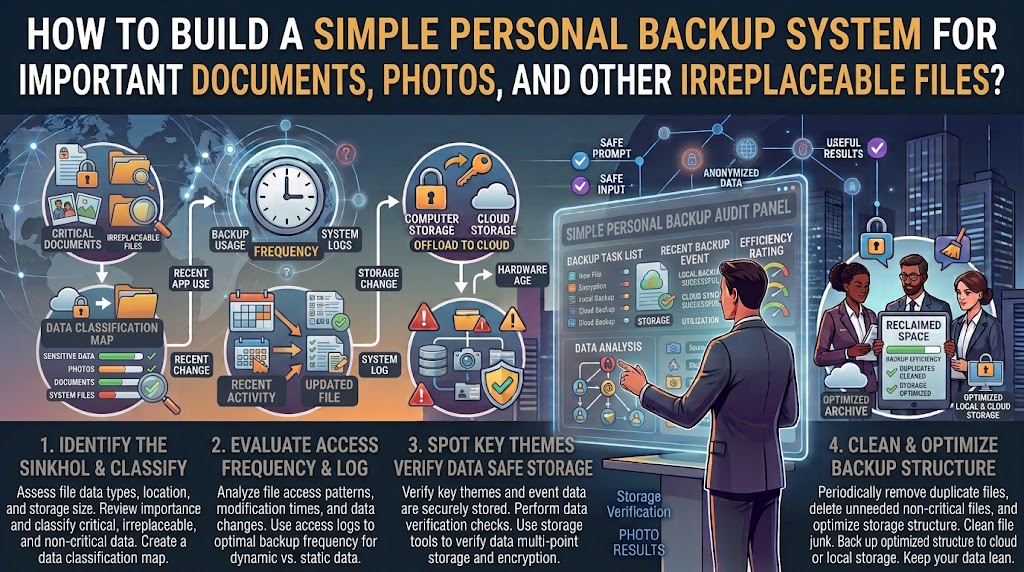
CISA has long recommended the 3-2-1 approach for important data: keep three copies, use two different types of storage, and keep one copy off-site. NIST also emphasizes that backups need to be maintained and tested rather than simply created once and forgotten.
The goal of this guide is not to make your backup system complicated.
It is to make it simple enough that you will actually maintain it.
Start by Deciding What You Cannot Afford to Lose
Do not begin by backing up every file on every device.
First identify the information that would be difficult or impossible to replace.
For many people, that includes:
- Family photos and videos
- Personal documents
- Scanned certificates and records
- Important PDFs
- Tax or financial records
- Home or insurance documents
- Work files that you personally need to retain
- Creative projects
- Important correspondence
- Password-manager recovery information
- Personal databases or spreadsheets
- Files belonging to long-term projects
You may also have files that are convenient to replace but still worth protecting.
Downloaded movies, temporary installers, and cached files generally do not deserve the same backup priority as irreplaceable family photographs.
This distinction makes the whole system easier.
If you try to back up everything equally, you can quickly run into storage costs and maintenance work that discourage you from backing up anything consistently.
Make Three Categories
A simple way to begin is to divide your files into three groups.
Irreplaceable
These are files you cannot recreate.
Examples include family photos, original videos, important personal documents, and completed creative work.
These deserve your strongest protection.
Important but Replaceable
These files matter, but you could recreate or download them if necessary.
Examples might include application installers, downloaded reference material, or copies of documents that also exist elsewhere.
Back them up when practical, but they do not need the same priority as your irreplaceable files.
Temporary
These are files you do not expect to need again.
Examples include screenshots, downloads, temporary exports, duplicate files, and files created during one-off tasks.
Do not let temporary clutter consume most of your backup storage.
Understand the Difference Between Sync and Backup
This is one of the most important parts of a personal backup system.
A cloud synchronization service is useful, but sync is not automatically the same thing as backup.
Suppose a folder on your computer synchronizes with a cloud service.
You delete an important file.
If that deletion synchronizes to the cloud, the cloud copy may also disappear or become subject to the service’s recovery rules.
The cloud copy was useful, but it was not necessarily an independent backup.
The same issue can occur with synchronized photo libraries.
If you delete a photo from a synchronized library, that deletion can propagate to other devices.
That is why your backup system should have at least one copy that is protected from ordinary changes to your primary files.
A good mental model is:
Sync keeps multiple locations coordinated.
Backup gives you something to recover from when coordination goes wrong.
The two can work together, but they solve different problems.
The Simple 3-2-1 Model
The traditional 3-2-1 approach is a useful starting point.
You want:
3 copies of important data
2 different storage types or locations
1 copy somewhere away from the primary location
For example, imagine your family photos live on your computer.
You could have:
Copy 1: Photos on your computer
Copy 2: External backup drive
Copy 3: Trusted cloud backup or another off-site copy
Now a laptop failure does not automatically destroy everything.
If your house has a serious problem, the off-site copy provides another layer.
CISA describes the 3-2-1 approach specifically as keeping three copies, using two different media types, and storing one copy off-site.
You do not have to follow the model mechanically for every temporary file.
Use it as a way of thinking about your most valuable data.
A Cloud Copy Can Be the Easiest Starting Point
For many people, cloud storage is the simplest first step.
It removes the need to remember to physically connect a drive every day.
For example, Google Photos can automatically back up photos and videos to a Google Account when backup is enabled. Google also lets users choose which device folders are included, rather than necessarily backing up every folder automatically.
Google’s Android backup system can also back up certain device data, including apps and app data, call history, contacts, device settings, and messages, although Google warns that not every app can back up or restore all of its settings and data.
Apple similarly provides iCloud backup for iPhone and iPad, and also supports backups to a Mac or Windows PC.
But do not make the mistake of thinking:
“My phone says Backup Complete, so everything important is protected.”
Check exactly what is included.
Different services back up different things.
Photos Need Special Attention
Photos are often the largest collection of irreplaceable personal data.
They also create a common backup mistake.
People enable photo backup, see that some pictures appear in the cloud, and assume the entire library is protected.
Instead, check the actual backup status.
Google Photos, for example, shows the current backup state and lets you check which account is being used. It also allows users to choose which device folders are backed up.
This matters because your camera folder might be protected while screenshots, downloaded images, messaging-media folders, or other important folders are not.
If you have several thousand photos, do not rely only on the backup indicator.
Open the cloud library and check actual older and newer photos.
Choose a few important images and confirm that you can access them independently of the phone.
That is a much stronger test.
Your Computer Should Have Its Own Backup
Phone backups do not automatically protect everything on your computer.
If important files live on a Windows PC or Mac, create a separate backup plan for those files.
A simple setup might be:
Computer → External backup drive
and, for the most important files:
Computer → Cloud or off-site copy
The external drive provides a local recovery option.
The cloud or off-site copy protects against events that could affect the computer and the external drive at the same time.
Choose an External Drive for a Reason
An external drive can be an excellent part of a personal backup system.
It is relatively simple.
It does not require a monthly subscription.
It can hold a large amount of data.
And it can be disconnected when not being used.
That last point is important.
If your backup drive remains permanently connected and accessible, it is exposed to some of the same risks as the computer.
Malware, ransomware, accidental deletion, electrical damage, theft, and other events may affect both.
For particularly important files, consider keeping the backup drive disconnected when a backup is not actively running.
NIST guidance on ransomware emphasizes keeping backups protected or isolated so an attack cannot easily spread to them.
Don’t Buy a Drive Before Checking How Much Data You Have
Before choosing backup hardware, check the size of your important data.
You might discover that:
- Your documents are only a few gigabytes.
- Your photos occupy hundreds of gigabytes.
- Your videos consume most of the space.
- Old downloads are using storage unnecessarily.
This affects the kind of backup system you need.
If you have 30 GB of important documents and photos, you do not need the same setup as someone with 4 TB of video files.
Start with the data, then choose the storage.
Keep Your Backup Structure Simple
Do not create a complicated folder system just because you are building a backup.
Your backup should be easy to understand when you are stressed.
A simple structure might look like:
Personal Documents
Photos
Videos
Projects
Financial Records
Device Backups
Inside those folders, use meaningful names and dates where useful.
For example:
2026-09 Home Insurance
is easier to understand than:
document-final-final2-new.pdf
The purpose is not to create a perfect filing cabinet.
It is to make recovery easier.
Back Up the Original, Not Just an Export
Be careful with files that exist in applications.
Sometimes the file you see is not the complete underlying project.
A photo-editing app might have a project library.
A video editor might use a project file plus media stored elsewhere.
A note-taking application might store information in a database rather than individual text files.
A contact list may exist inside an account rather than as a local file.
Before deciding that something is backed up, ask:
“If I lost the original device tomorrow, could I actually reconstruct this information from my backup?”
If the answer is no, your backup is incomplete.
Back Up Password Recovery Information Carefully
Your backup system can also contain information that helps you regain access to other accounts.
Examples include:
- Password-manager recovery information
- Recovery codes
- Encryption keys
- Backup codes
- Important account recovery documents
These files deserve special protection.
Do not simply place recovery codes into an unencrypted folder called “Important Passwords” and copy it to every device.
Think about what would happen if someone obtained that backup.
For sensitive recovery information, use the security features provided by your password manager or account provider and protect backup copies appropriately.
Your backup should help you recover from a disaster without creating a new security disaster.
Encryption Matters for Portable Backups
An external drive can be lost or stolen.
If the drive contains personal documents, photographs, financial records, or other private information, consider using encryption supported by your operating system or backup software.
This creates an important trade-off.
Encryption improves protection if the drive is lost.
But encryption also means you need to protect the password or recovery information required to access the backup.
Apple, for example, notes that encrypted local iPhone backups require a backup password, and Apple warns that the encrypted backup cannot be recovered without that password.
So never create an encrypted backup and then casually forget where its recovery information is stored.
Keep One Copy Away From the Main Device
An external drive sitting next to your laptop is useful.
But it is still physically close to the laptop.
If both are stolen, destroyed, or damaged by the same event, the backup may disappear with the original.
That is why the off-site part of the 3-2-1 approach matters.
The off-site copy does not have to mean a second house filled with computers.
For a normal personal setup, it might be a reputable cloud service or another secure location appropriate to your circumstances.
The important part is that one event affecting your primary location should not automatically destroy every copy.
Don’t Assume Cloud Storage Is Your Entire Backup Plan
Cloud storage provides useful protection, but it has its own risks.
You can lose access to an account.
A synchronization mistake can propagate changes.
Storage limits can interrupt uploads.
A service can change its features or policies.
You may accidentally delete files.
And you still need to protect the account itself.
That means your cloud account should have strong authentication and up-to-date recovery information.
If your entire backup system depends on one online account, losing access to that account can become the disaster you were trying to protect against.
Protect the Account That Holds Your Backup
This is easy to overlook.
Imagine you have spent years uploading photos and documents to a cloud account.
Your phone breaks.
Your computer fails.
You then discover that you cannot sign into the cloud account because you forgot the password and no longer have access to the recovery phone number.
Technically, you created backups.
Practically, you cannot reach them.
Keep recovery information for important cloud accounts current.
Use a strong, unique password.
Enable appropriate multi-factor authentication.
Keep recovery methods accessible.
And make sure you understand how account recovery works before you need it.
Your backup is only useful if you can retrieve it.
Test Your Backup Before You Need It
This is the step people skip most often.
A backup that has never been restored is an assumption.
NIST emphasizes that backup and restoration strategies should be tested, not simply created.
You do not need to perform a complete disaster recovery exercise every week.
Start with a small test.
Choose several files.
For example:
- One photo
- One PDF
- One document
- One spreadsheet
- One video
Try restoring them from the backup.
Open each file.
Make sure the contents are intact.
If the backup is on another device or service, make sure you can actually access it.
This can reveal problems that a simple “backup completed” message will not.
Test an Old File, Not Just a New One
A backup system can appear healthy while older files are missing.
Choose files from different dates.
For example:
One file from this week
One from several months ago
One from several years ago
This helps you determine whether the backup system is preserving the history you expect.
It also gives you confidence that older family photos and documents have not quietly disappeared.
Don’t Delete the Original Immediately After Backing It Up
One of the most dangerous habits is:
“I uploaded it, so I can delete the original.”
Slow down.
First confirm the copy exists.
Then open it.
Then confirm that it is the correct version.
Only after that should you consider removing the original, and even then, ask whether you actually need to remove it.
For irreplaceable files, having two accessible copies is often more useful than maintaining only one copy in the cloud.
Give Important Files More Than One Protection Layer
Not every file needs identical protection.
A temporary download might need no backup at all.
A family photo may deserve several copies.
A critical document might deserve an additional encrypted copy.
Think in terms of importance.
For example:
Normal files: primary copy + routine backup
Important files: primary + local backup + cloud/off-site copy
Extremely important files: multiple independent copies plus careful account and encryption protection
This keeps the system practical.
You spend more effort protecting the things that would hurt most to lose.
Use Different Backup Frequencies for Different Data
Not every file needs to be backed up every hour.
Photos taken every day may benefit from automatic backup.
Important documents that change weekly may need regular scheduled backups.
A folder containing old archived material may only need attention when something changes.
The right question is:
“How much recent work could I afford to lose?”
If losing a week’s worth of work would be a serious problem, your backup frequency should be shorter than a week.
A Simple Personal Backup Schedule
You can keep the routine very simple.
Automatically
Let your phone photos and important cloud-synced files back up automatically where practical.
Weekly
Check that your important computer files have been backed up.
Monthly
Review backup status and storage capacity.
Restore a few test files occasionally.
When something changes
After adding a major project, importing a large batch of family photos, or creating important documents, make sure those files have entered your backup system.
The exact schedule is less important than having a routine you will actually follow.
What to Do With an Old Computer
Old computers often contain files people forget to include in their backup plan.
Before recycling, selling, or giving away an old computer, check it for:
- Old photographs
- Documents
- Downloads
- Desktop files
- Browser exports
- Local project files
- Email archives
- Old backups
- Device-specific files
Do not assume everything was automatically synchronized.
Some files may exist only on that machine.
Copy anything important into your current backup system and verify the copies before wiping the old computer.
What to Do With an Old Phone
The same applies to phones.
Before resetting or trading in an old phone, confirm that your photos, contacts, messages, documents, and other important information have actually transferred or backed up.
Google’s Android guidance notes that backup coverage varies by data type and app, and some apps cannot restore all settings or data.
Apple also supports both cloud and computer-based device backups, giving users another way to retain device information before replacement.
Do not erase an old device simply because the new device appears to contain most of your information.
Check first.
Avoid Making One Backup Drive Your Only Backup
An external drive is not a magic vault.
It can fail.
It can be lost.
It can be stolen.
It can be accidentally formatted.
It can become corrupted.
It can be damaged by heat, water, impact, or other physical problems.
This is why an external drive works best as one layer of your backup system rather than the entire system.
If your most important photos exist only on your phone and one external drive, you have improved the situation but still have a single local disaster that could affect both copies.
Add an appropriate off-site copy for the files you cannot replace.
Be Careful With Automatic Deletion and Storage Optimization
Some cloud and device features are designed to save local storage.
They can be useful.
But make sure you understand what they are doing.
For example, a feature that removes local copies after confirming that files are backed up is different from a feature that deletes files from the synchronized library.
Before enabling a cleanup or storage-saving feature, understand whether it:
removes only the local copy
or
deletes the file from the cloud library as well.
This distinction can prevent an accidental data loss event.
Don’t Backup the Same Mistake Three Times
More copies do not automatically mean better protection.
Imagine your computer contains a folder with 500 duplicate photos.
You copy that folder to two external drives and upload it to the cloud.
Now you have three copies of the same clutter.
If you later discover that the folder was accidentally deleted or corrupted before the backups ran, you may have faithfully backed up the wrong state.
For important data, organization and backup should work together.
Clean obvious duplicates and unnecessary files where appropriate, but do not delete valuable material merely to make the backup smaller.
Keep a Simple Backup Inventory
You do not need a complicated database.
A small note can be enough.
Write down:
What is backed up
Where it is backed up
When it was last checked
How to restore it
Where recovery passwords or keys are stored
For example:
Family photos — Google Photos + external drive — checked September 2026
Personal documents — computer + external drive + cloud — checked September 2026
Important project — computer + external drive + off-site copy — checked September 2026
This becomes extremely useful months later when you cannot remember where a particular copy lives.
A Backup Is Not Complete Until You Can Restore It
This is the most important idea in the entire system.
A backup is not just a file sitting somewhere else.
It is a copy you can actually retrieve and use.
If the drive is unreadable, the cloud account is inaccessible, the backup password is lost, or the file is corrupted, the existence of a supposed backup does not help much.
That is why testing matters.
Pick a few files.
Restore them.
Open them.
Check that they are what you expected.
Then periodically repeat the test.
A Practical Personal Backup Setup
For someone who wants a straightforward system, this is a good starting point:
Phone
Automatic cloud backup for photos and supported device data.
Computer
Important files stored in clearly organized folders.
Local backup
An external drive containing important files or a full supported backup.
Off-site backup
A trusted cloud service or another secure location containing copies of the files that would be difficult to replace.
Security
Strong account passwords, multi-factor authentication where appropriate, and protection for backup drives and encryption keys.
Verification
Occasional restoration tests.
This is enough to create a meaningful backup system without turning your home into a small data center.
A 30-Minute Backup Audit
If you do not currently have a backup system, you can start without trying to solve everything in one day.
First 5 minutes: Find your important files
Identify your most valuable photos, documents, and projects.
Next 5 minutes: Check existing backups
Look at your phone’s backup status and cloud storage.
Next 10 minutes: Create or connect a second copy
Copy your most important files to an appropriate backup destination.
Next 5 minutes: Verify
Open several files from the backup.
Final 5 minutes: Write down the system
Record where the copies are and when you last checked them.
You can improve the system later.
The important thing is to move from one copy to multiple recoverable copies.
Common Backup Mistakes
Keeping everything on one device
A phone or laptop can fail without warning.
Assuming cloud sync is backup
Synchronization and backup have different purposes.
Backing up only once
A six-month-old backup may not help recover work created yesterday.
Never testing restoration
A backup that cannot be restored is a serious problem.
Keeping every backup connected
An always-connected backup can be more exposed to malware or accidental changes.
Forgetting account recovery
A cloud backup is not useful if you cannot access the account.
Losing the encryption password
Encrypted backups can protect your information, but losing the recovery information can also lock you out.
Deleting the original immediately
Verify the backup before removing anything important.
Making the system too complicated
A backup plan you will not maintain is worse than a simple plan you actually use.
Final Takeaway
A personal backup system does not need to be complicated.
Start with the files you genuinely cannot replace. Make sure they exist in more than one place. Keep at least one copy away from the primary device or location. Use automatic cloud backup where it makes sense, add a local backup for important computer files, and protect the accounts and passwords that control your backups.
Then test the system.
Choose a few files and restore them. Make sure they open correctly. Check older files as well as recent ones.
The most important shift is to stop thinking of backup as a button you press once.
It is a small system you maintain.
For irreplaceable photos, documents, and personal files, the goal is simple:
If one device disappears tomorrow, you should still have a realistic way to get your important information back.
Frequently Asked Questions
Is cloud storage enough for backing up personal files?
It can be an important part of a backup system, but it should not automatically be treated as your only protection. Synchronization can propagate deletions, and account access can become a problem. For irreplaceable files, having another independent copy is safer.
What is the 3-2-1 backup rule?
The traditional 3-2-1 approach means keeping three copies of important data, using two different types of storage or media, and keeping one copy off-site. It is a useful framework rather than a requirement that every temporary file must have three copies.
How often should I back up my files?
It depends on how much recent work you could afford to lose. Photos and frequently changing files are good candidates for automatic or frequent backup. Less frequently changing archives can be backed up whenever they change and checked periodically.
How do I know whether my backup actually works?
Restore several files and open them. Test different file types and include at least one older file. NIST recommends testing backup and restoration strategies rather than assuming that a backup is usable simply because it was created.
Should I disconnect my external backup drive?
For important data, disconnecting a backup drive when it is not needed can reduce its exposure to some threats, including malware or ransomware that could otherwise reach connected storage. NIST specifically recommends protecting or isolating backups so ransomware cannot easily spread to them.
Are phone backups enough to protect everything on my phone?
Not necessarily. Backup coverage varies by operating system, app, account, and data type. Google explicitly notes that not all Android apps can back up or restore all settings and data. Check the backup details and verify important information separately.
Sources and Further Reading
- CISA — Data Backup Options and the 3-2-1 backup approach.
- NIST — Protecting Data from Ransomware and Other Data Loss Events.
- NIST — ransomware recovery guidance emphasizing secure and isolated backups.
- Google Android Help — backing up and restoring Android device data.
- Google Photos Help — backing up photos and videos and checking backup status.
- Apple Support — iCloud backup and device recovery.
- Apple Support — backing up iPhone and iPad to Windows.
- Apple Support — backing up iPhone and iPad to a Mac.