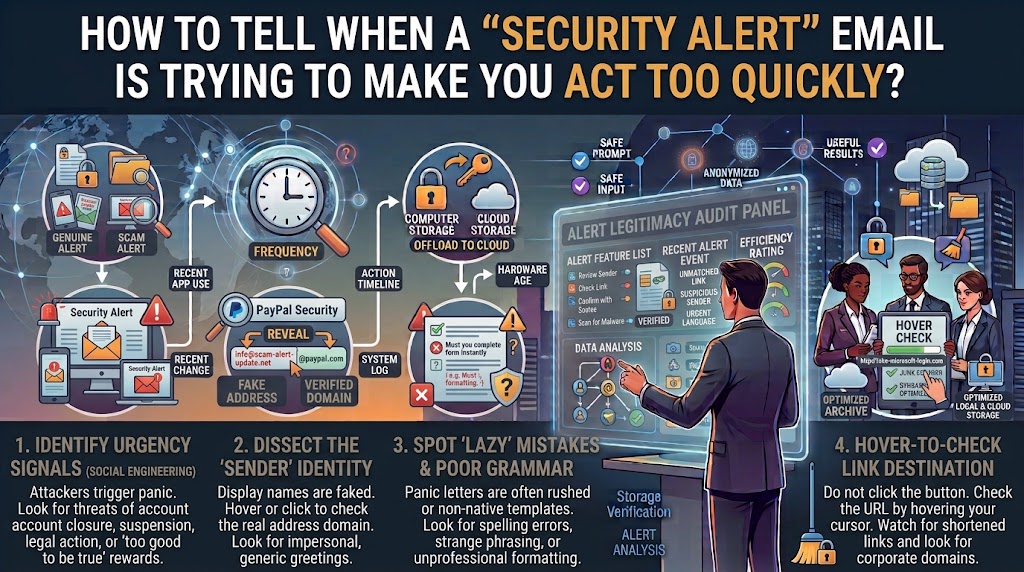
A security alert email can create an uncomfortable feeling within seconds.
“Someone tried to sign in.”
“Your account will be locked.”
“Unusual activity detected.”
“Verify your identity immediately.”
The natural reaction is to click the button and fix the problem before anything worse happens. That reaction is exactly what scammers try to create.
Phishing emails often use urgency, fear, and the possibility of losing access to an account to make people act before they stop to check whether the message is genuine. Microsoft specifically identifies urgent calls to action and threats as common phishing warning signs, while the FTC advises people not to click unexpected links or attachments and instead contact the organization through information they already know is legitimate.
The difficult part is that real security alerts also exist. Google, for example, sends alerts when it detects events such as a new-device sign-in or suspicious activity.
So the goal is not to ignore every security email. The goal is to learn how to slow down without ignoring a genuine security problem.
Start With One Simple Rule: An Urgent Email Does Not Make the Situation Urgent
The first thing to recognize is the difference between the message’s urgency and the actual security situation.
A message might say:
“You have 15 minutes to secure your account.”
That deadline is part of the message. It is not proof that the deadline is real.
Scammers use artificial urgency because people tend to make different decisions when they feel pressured. Microsoft describes creating a false sense of urgency as a common phishing technique because it discourages people from stopping to think or consulting someone they trust.
When an email makes you feel that you must act immediately, make that feeling a reason to pause, not a reason to click.
Close the email for a moment. Take a breath. Then investigate the warning separately.
That small change in behavior can prevent a rushed mistake.
Look for What the Email Is Trying to Make You Do
Don’t start by asking whether the email looks professional. Start by asking what it wants from you.
A suspicious security email may ask you to:
- click a button to secure your account
- enter your password
- confirm your phone number
- provide a verification code
- download an attachment
- call a phone number
- approve a login
- update payment information
- provide personal information
- sign in through a link inside the message
None of these requests automatically proves that an email is fake. The problem is when an unexpected request is combined with pressure.
For example, “Review your recent account activity” is very different from “Your account will be permanently deleted in 30 minutes unless you verify your password here.”
The second message is deliberately trying to remove the time you have to think.
Google also warns users to be cautious about messages that ask for personal information and says users should not enter their password after following a link in a message.
Check Whether You Actually Have an Account With the Company
This is one of the fastest checks you can perform.
If an email claims to be from a company you have never used, stop there.
You don’t need to investigate a supposed security incident for an account you don’t have.
The FTC recommends asking whether you actually have an account with the company or know the person who contacted you. If you don’t, the message may be phishing.
Be careful, though. Having an account with the company does not prove the email is legitimate.
Scammers deliberately target customers of popular services because there is a reasonable chance the recipient actually uses the service.
A fake Microsoft, Google, Apple, banking, shopping, or streaming alert can therefore feel convincing even when it has nothing to do with a real account event.
Don’t Trust the Sender Name Alone
A sender name can be easy to imitate.
An email might display:
Google Security
Microsoft Account Team
Apple Support
Your Bank Security Department
That visible name isn’t enough.
Look at the actual email address and domain. Microsoft recommends checking for mismatched domains and subtle spelling changes, such as replacing characters in a legitimate domain with similar-looking characters.
For example, a scammer might use a domain that visually resembles a legitimate one but contains an extra word, different spelling, or unrelated domain ending.
Still, don’t make the mistake of thinking that a convincing sender address automatically proves the message is genuine. Email authentication and sender information can be complicated, and attackers can make messages look convincing.
Treat the sender information as one clue, not your final test.
Be Especially Careful With the Big Red Button
Security emails often contain a large button such as:
Secure My Account
Verify Now
Review Activity
Restore Access
Confirm Identity
The button may look completely legitimate.
That doesn’t mean the destination is legitimate.
On a computer, you can often move your mouse over a link without clicking it and inspect the destination shown by your browser or email application. Google and Microsoft both recommend checking where links actually lead before opening them.
But there is an even safer approach.
Don’t use the email’s link at all.
If you are concerned that your account may actually have been attacked, open a new browser window yourself. Type the company’s known website address manually, use a bookmark you previously saved, or open the official app.
Then check your account from there.
This separates the security investigation from the potentially dangerous message.
Check the Account Directly Instead of Trusting the Email
This is probably the most useful habit you can develop.
Suppose you receive an email saying:
“Someone signed into your account from a new device.”
Instead of clicking Review Sign-In, open the service yourself.
Look for:
- recent sign-ins
- unfamiliar devices
- recent password changes
- security settings
- recovery email or phone changes
- unfamiliar connected applications
- recent account activity
Google provides account security pages where users can review suspicious activity and unfamiliar devices. Its guidance also explains that genuine security alerts can contain details such as the device, time, and location associated with an event.
This gives you a much stronger answer than simply deciding whether an email “looks real.”
Watch for Fear-Based Language
Urgency is often combined with fear.
A suspicious message might tell you:
“Your account has been compromised.”
“Your photos are at risk.”
“Someone has your password.”
“Your account will be permanently deleted.”
“Your payment has failed.”
“Your device is infected.”
“Unauthorized activity requires immediate verification.”
Some genuine alerts can contain serious language. That is why the wording itself should not be treated as proof of fraud.
Instead, notice how the message tries to influence your behavior.
Does it give you enough information to investigate calmly?
Or does it immediately push you toward a link, phone number, attachment, password request, or payment?
The second pattern deserves extra caution.
The FTC has also warned about urgent security messages that try to push people into fake technical-support calls.
Never Call a Number Just Because a Security Email Tells You To
A phone call can feel safer than clicking a link, but it can be part of the scam.
An email may say:
“Call our security team immediately.”
Then it provides a telephone number.
If the message is fake, the person answering that number can continue the deception over the phone.
They may claim your computer is infected, your account is compromised, or your identity needs to be verified. From there, they could ask you to provide information, install software, give remote access, or make a payment.
The FTC specifically warns about urgent tech-support messages that impersonate well-known companies and encourage people to call.
If you genuinely need to contact a company, find the number through its official website, app, statement, card, or another trusted source rather than using the number supplied by the suspicious email.
Attachments Deserve the Same Suspicion as Links
People sometimes learn not to click suspicious links but forget about attachments.
A fake security alert might include a file named:
Security_Report.pdf
Account_Verification.html
Threat_Detected.zip
Login_Activity.docx
The filename doesn’t prove anything.
Unexpected attachments can be used to deliver malicious software or send you to a fake sign-in page. The FTC and Microsoft both advise against opening unexpected attachments in suspicious messages.
If you weren’t expecting the file, don’t open it simply because the email says it is urgent.
Verify the message independently first.
Don’t Let a Perfect Logo Convince You
Modern phishing emails can look surprisingly professional.
They may contain the company’s logo, familiar colors, legal notices, buttons, account information, and carefully written text.
That is why appearance is becoming a weaker test.
Instead of asking:
“Does this look like a Google email?”
ask:
“Can I independently confirm that the claimed security event happened?”
That’s a much better question.
A professional-looking email can be fake. An ordinary-looking email can be genuine.
The important thing is whether the underlying event can be verified through the company’s real website or app.
Be Careful With Messages About Passwords and Verification Codes
A particularly serious warning sign is a request for information that could help someone take over your account.
Never casually provide:
- your password
- a one-time verification code
- a recovery code
- a security key
- backup codes
- authentication-app codes
- sensitive identity information
A scammer may claim that they need the information to “verify that you’re the account owner.”
That’s exactly why you should stop.
Google states that it does not ask for your password through email, messages, or phone calls.
A genuine security process should not require you to hand your secret credentials to someone who contacted you unexpectedly.
What If the Alert Might Actually Be Real?
This is where people sometimes go wrong in the opposite direction.
They learn about phishing and start ignoring every security notification.
That’s not a good solution.
If you receive an alert about an unfamiliar sign-in, don’t simply delete it. Investigate the account through a trusted route.
For example:
- Don’t click the email link.
- Open the official app or website yourself.
- Sign in normally.
- Review recent security activity.
- Check unfamiliar devices or sessions.
- Review recent security-setting changes.
- Change your password if the account shows unauthorized activity.
- Review recovery information and connected applications.
- Turn on multi-factor authentication if it isn’t already enabled.
Google’s current security guidance recommends reviewing sign-in details and securing the account when activity isn’t recognized.
The important distinction is this:
Don’t ignore the security problem. Ignore the pressure to solve it through the email.
What If You Already Clicked the Link?
Don’t panic.
Clicking a link does not necessarily mean your account has been compromised. What matters is what happened afterward.
If you clicked but immediately closed the page without entering information or downloading anything, the situation is different from entering your password into a fake website.
If you entered your password, change it through the legitimate service’s website or app. If that password was reused elsewhere, those other accounts may also need attention.
If you provided financial information, contact the relevant financial institution through an official channel.
If you downloaded a suspicious file, avoid opening it again and follow the security guidance appropriate for your device.
The FTC recommends taking action based on what information was exposed and what happened after interacting with the phishing message.
A Simple “Pause Before You Click” Routine
You don’t need a complicated cybersecurity system to handle suspicious security emails better.
Use this short routine:
Pause.
Don’t click immediately.
Identify.
Who supposedly sent the message?
Question.
What is it trying to make you do?
Inspect.
Check the sender information and destination without opening suspicious links.
Separate.
Open the company’s official website or app yourself.
Verify.
Look for the alleged security event in your actual account.
Act.
If the activity is real, secure the account using the legitimate service.
Report.
Report the phishing message through your email provider or the appropriate organization.
Delete.
Once you’ve finished investigating and reporting it, remove the suspicious message.
This routine works because it changes the order of events. Instead of email → panic → click → investigate, you use email → pause → independent verification → action.
Why Slowing Down Is Actually a Security Skill
People sometimes think good cybersecurity means reacting as quickly as possible.
That’s only partly true.
When you know that an account has actually been compromised, acting quickly can matter. But when an unknown message is trying to convince you that something terrible is happening, speed can work against you.
The scammer wants you to make the decision inside their message.
Your safest move is to move the decision somewhere they don’t control.
Don’t use their link.
Don’t use their phone number.
Don’t reply with sensitive information.
Don’t download the attachment just to find out what it contains.
Instead, open the legitimate service independently and investigate from there.
That single habit removes much of the attacker’s advantage.
Final Thoughts
A security alert email should get your attention, but it should not get control of your decision-making.
Real companies do send security notifications. A message about a new login or suspicious activity can be important, and ignoring genuine warnings can leave an account exposed.
The safest approach is therefore not “ignore security emails.”
It is verify security emails without trusting the route they give you.
When a message says you must act immediately, stop. Check what it is asking for. Look at the sender. Treat links and attachments cautiously. Then open the company’s official website or app yourself and see whether the claimed problem actually exists.
If it does, deal with it there.
If it doesn’t, the email may have been trying to create a problem that never existed.
That pause between receiving the warning and taking action can be one of the most useful security habits you build.
Sources and Further Reading
Google Account Help: Guidance on responding to genuine security alerts and investigating suspicious activity.
Google Gmail Help: Guidance for recognizing phishing messages, checking links, and avoiding suspicious login requests.
Microsoft Support: Guidance on urgent phishing messages, suspicious senders, mismatched domains, links, and attachments.
Federal Trade Commission: Consumer guidance on phishing, unexpected links, attachments, and independently contacting companies.
Frequently Asked Questions
Can a real security alert also sound urgent?
Yes. A legitimate service may notify you about important account activity. The urgency of the message alone does not prove that it is fake. The safer approach is to verify the event through the company’s official website or app rather than relying on the email’s links.
Should I click a security alert email if I recognize the company?
Not automatically. Even if you use the company, a scammer can impersonate it. If the email asks you to sign in, verify information, or secure your account, open the official app or website separately and check the account there.
Is a strange sender address always proof of phishing?
It is a strong warning sign, but sender information should be considered alongside other evidence. Look for mismatched domains, suspicious links, unexpected attachments, unusual requests, and pressure to act immediately.
What should I do if a security email asks for my password?
Don’t provide it through the email. Go directly to the service’s official website or app instead. Google specifically says it does not ask for account passwords through email, messages, or phone calls.
What if I clicked the link but didn’t enter anything?
Don’t panic. Close the page and consider what happened next. If you didn’t enter credentials, download anything, or provide information, the risk may be lower. If you did provide sensitive information, secure the affected account through its legitimate website and take additional steps based on what was exposed.
What’s the safest way to handle a security alert?
Use the email as a reason to investigate, not as the place where you perform the investigation. Open the official service independently, review your account’s security activity, and take action there if something is genuinely wrong.