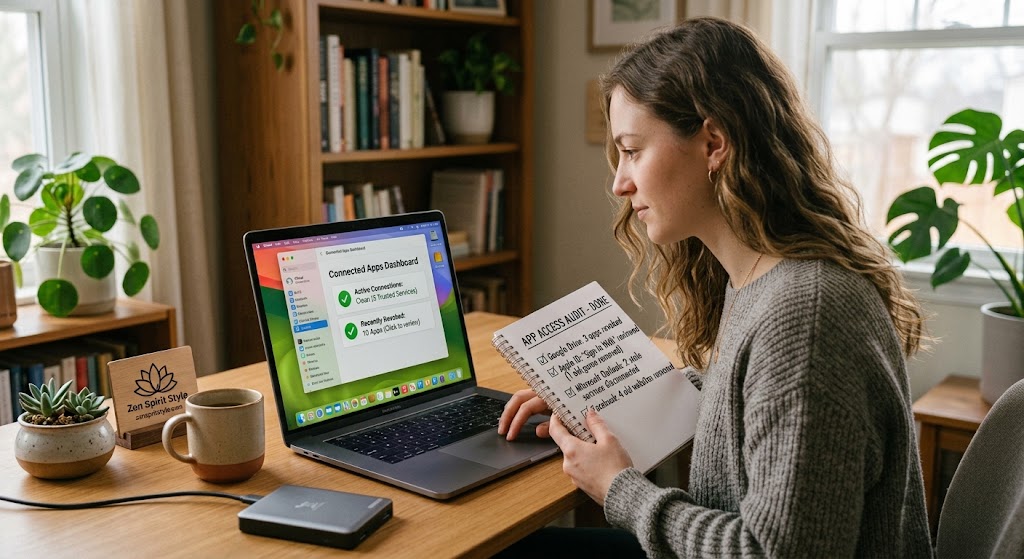
Over time, it is easy to give dozens of apps and websites access to your accounts without thinking much about it.
You might use “Sign in with Google” to try a new service. A photo-editing app may ask for access to your photos. A productivity tool might request access to your calendar. A website may ask to connect with your Microsoft account so it can import information.
Most people do not go back and review those connections.
Years later, some of those apps may no longer be used, some companies may have changed ownership, and some services may have disappeared completely. Yet the connection may still be listed in your account.
That does not automatically mean something is wrong. It does mean the connection is worth reviewing.
A good account-access audit is not about deleting everything you do not recognize. It is about understanding which services are connected, what they can access, whether you still need that access, and what happens if you revoke it.
Start by Understanding What “Account Access” Actually Means
Not every connection between an app and your account gives the app the same level of access.
Some connections may simply let you use your Google, Apple, Microsoft, or other account to sign in.
Others may allow an application to read contacts, calendar information, cloud files, photos, or other account data.
Some permissions can go further and allow an app to create, change, or delete information.
Google’s current documentation explains that third-party applications can receive different levels of access to Google Account data. Depending on the authorization, an app may be able to view or copy information or manage certain account data.
So when reviewing connected apps, do not ask only:
“Do I recognize this app?”
Ask:
“What can this app actually do with my account?”
That second question is much more useful.
Make a List of the Accounts You Need to Check
There is rarely one master page showing every application that has access to every account you own.
Instead, review your major accounts separately.
Start with accounts that are especially important to your digital life:
Your primary email account.
Your Apple, Google, or Microsoft account.
Your social media accounts.
Your cloud storage account.
Your password manager.
Your shopping accounts.
Your financial-service accounts.
Your work or school account.
Your messaging or communication services.
You do not have to audit everything in one sitting.
In fact, doing one major account at a time is usually safer because you can understand each connection before changing it.
Begin With Your Primary Email Account
Your main email account deserves special attention.
Email is often connected to password resets, account recovery, receipts, notifications, and identity verification for other services.
If a third-party application has access to your email data, that deserves more scrutiny than an old game that only used your basic profile information.
For Google accounts, the current linked-app controls let you review applications that have access to Google Account data and inspect the type of access they have. Google says linked apps may request access to services such as Gmail, Drive, Calendar, Photos, and Contacts.
Look for applications you no longer use.
Then inspect what each application was allowed to access.
Do not revoke everything automatically.
An app you still use may depend on that permission to perform an important function.
Review “Sign in With” Connections Separately From Data Permissions
“Sign in with Google,” “Sign in with Apple,” and similar features can make account management easier, but they can also leave behind connections that you forget about.
Google’s current account controls distinguish between using Sign in with Google and granting an application additional access to Google Account data.
That distinction matters.
An app might only need your basic profile information to create an account.
Another app may have been authorized to access additional Google services.
Do not assume that every “connected app” has the same level of access.
When reviewing a connection, look for the actual permissions or services listed by the account provider.
Check What Information the App Can Access
This is where the audit becomes useful.
Suppose you find an old photo application.
The name sounds familiar, so you decide to leave it alone.
But then you inspect its permissions and discover that it has access to your Google Photos account.
That changes the question.
You are no longer asking whether you remember using the app.
You are asking whether an application you no longer use still needs access to your photos.
The same principle applies to contacts, calendars, cloud documents, email, and other personal information.
Google recommends reviewing the information requested by third-party apps and checking the developer’s privacy and security disclosures before granting access.
Use the same habit when reviewing old connections.
Look for Apps You No Longer Use
Unused applications are some of the easiest connections to review.
Think about services you tried once and never returned to.
Maybe you tested a budgeting application.
Maybe you connected a calendar service.
Perhaps you tried an AI tool, photo editor, fitness application, browser extension, shopping service, or productivity platform.
If you have not used the service for years, ask whether it still needs access to your account today.
There is no benefit in keeping unnecessary access simply because you might use the application again someday.
If you do need the service again, you can usually reconnect it when necessary.
However, do not confuse an unfamiliar name with an unused service.
Some applications appear under a company name rather than the brand name you remember.
If you are unsure, investigate before revoking access.
Investigate Before Removing Something You Do Not Recognize
An unfamiliar entry does not automatically mean your account has been compromised.
There are several possible explanations.
The company may have changed its name.
The app may use a parent company’s name.
You may have connected the service years ago and forgotten about it.
You may have used a website briefly without remembering the account.
A browser extension or mobile application may also have been associated with a service you recognize under a different name.
Before removing an unfamiliar connection, look at the details provided by your account provider.
Search for the developer’s official website separately if necessary.
Do not click suspicious links simply because you want to identify an application.
If the connection genuinely looks suspicious, removing its access may be appropriate, followed by a broader security review of the account.
Pay Attention to High-Privilege Permissions
Not all permissions deserve the same level of attention.
An application that only receives basic profile information presents a different situation from an application that can modify cloud data.
Google explains that some linked applications can be authorized to manage Google Account data, including the ability to edit, create, or delete certain data.
Those permissions deserve careful review.
If you see access involving email, contacts, cloud storage, calendars, photos, or the ability to modify data, take a closer look at why the application needs it.
A useful question is:
Does the app still need this permission to perform something I actively use?
If the answer is no, revoking the access may be reasonable.
Review Your Google Account
Google provides a current linked-app management area where you can review different types of third-party connections.
Google says the page can show where you use Sign in with Google, where you have allowed an application access to Google Account data, and where you have linked your Google Account with an app from another developer.
Open each connection and inspect the details.
If an application no longer needs access, Google provides an option to remove that access.
Removing access prevents the application from accessing your Google Account through that authorization.
There is an important catch, though.
Removing access does not necessarily delete information the application already received.
Google specifically notes that a third-party app may retain information previously shared with it and that you may need to contact the developer to request deletion.
That distinction is easy to miss.
Review Your Microsoft Account and Microsoft-Connected Apps
Microsoft also provides tools for managing application permissions in certain account environments.
For work and school accounts using Microsoft’s My Apps portal, users can see applications they or their organization have consented to and can revoke permissions they personally granted. Microsoft warns that removing permissions can cause an application to stop working correctly.
This is especially important if you use a Microsoft account for work or school.
Some permissions may have been approved by an administrator rather than by you.
Microsoft explains that administrator-consented permissions cannot necessarily be revoked by the individual user and may be required by organizational policy.
Therefore, do not treat a work account exactly like a personal account.
If an application is required by your organization, removing access without understanding its purpose can create a work problem rather than a security improvement.
Review Apple Account Connections Too
Apple users should also review the applications and websites connected to their Apple Account.
Pay particular attention to services where you used Apple’s sign-in feature.
The important principle is the same regardless of provider:
Identify the connection.
Understand what information is shared.
Determine whether you still use the service.
Then decide whether the connection should remain active.
If you use Apple devices for both personal and work purposes, be especially careful before removing access from services that may still be required for another device or workflow.
Check Social Media Accounts
Third-party connections are not limited to Google, Apple, and Microsoft.
Social networks can also allow external applications and websites to connect to your account.
You may have authorized an application to post content, access basic profile information, or provide some other integration.
Look through the connected apps or websites section of each major social account.
Remove services you no longer recognize or use, but investigate unfamiliar entries before assuming they are malicious.
If a connection has permissions to perform actions on your behalf, take extra care.
You do not want an abandoned application retaining unnecessary ability to interact with your account.
Do Not Confuse App Permissions With Phone Permissions
There is another distinction that often causes confusion.
An application can have permission to access something on your phone, while also having a separate connection to an online account.
For example, a photo application might have permission to access your phone’s local photos.
That does not necessarily mean it has access to your Google Photos account.
Likewise, an application connected to your Google Account is not automatically the same thing as an application that has permission to use your phone’s camera or microphone.
These are different layers of access.
For Android and iPhone users, review both when appropriate:
Account-level access: what an online service can access through your account.
Device-level permissions: what an installed application can access on your phone.
Keeping these separate makes the audit much easier to understand.
Check Browser Extensions and Connected Websites
Your browser deserves attention too.
You may have installed extensions years ago and forgotten about them.
Some browser extensions can request significant permissions because they need to interact with webpages or browser data.
Review extensions you no longer use.
Remove old ones rather than keeping them installed simply because you might need them later.
Also check websites that have been granted account access through your browser or account provider.
If you see an old service you no longer use, investigate it.
Do not install another “security cleaner” extension simply because it promises to find unwanted permissions. You already have account-management tools provided by the account provider.
Removing Access Is Not the Same as Deleting Your Data
This is one of the most important points in the entire process.
Suppose you used an application to edit photos.
You later remove its access to your Google Account.
The application may no longer be able to access your Google data through that connection.
But if you previously uploaded photos to the application’s own servers, those photos may still exist there.
Google explicitly explains that removing a linked application’s access does not necessarily delete information that the application already received.
So if your goal is privacy cleanup, there are actually two separate tasks:
Revoke future access.
Request deletion of information already stored by the service.
The second step normally has to be handled through the third-party service’s own account or privacy controls.
Check the Company’s Privacy and Account-Deletion Options
If you decide that you no longer want to use a service, visit its official website rather than relying only on the account-provider connection page.
Look for its account settings, privacy controls, and account deletion instructions.
You may find separate options for:
Deleting your account.
Deleting uploaded files.
Deleting stored personal information.
Disconnecting a social or cloud account.
Deleting activity history.
Cancelling a subscription.
These are not necessarily the same action.
For example, disconnecting Google from an application does not automatically mean the application has deleted your existing account or stored information.
Google advises users to review the third-party developer’s privacy policy when deciding how their shared information is handled.
Be Careful With Apps That Have Financial or Sensitive Information
Some applications deserve more attention than others.
Consider services that may contain:
Personal documents.
Photos.
Contacts.
Private messages.
Location history.
Financial information.
Health-related information.
Work documents.
Account recovery information.
If you no longer use one of these services, review both the account connection and the information stored directly with the company.
For sensitive services, simply removing the sign-in connection may not be enough.
You may need to sign in directly, download anything you need, delete stored information, and then close the account.
If You Find an Access You Definitely Did Not Authorize
Treat this differently from an ordinary forgotten connection.
Do not immediately assume that the application itself is malicious, but do not ignore the situation either.
First, record what you found.
Then remove suspicious access if appropriate.
Review recent account activity and signed-in devices.
Change your account password if you have reason to believe the account itself may have been compromised.
Turn on multi-factor authentication if it is not already enabled.
Review other connected applications for anything else you do not recognize.
If the suspicious connection involves an important account such as your primary email, take the situation seriously because that account may be used to recover other accounts.
Google’s account tools also allow users to review recently signed-in devices and remove devices they do not recognize.
Do Not Remove Everything at Once
A common mistake during a security cleanup is becoming too aggressive.
You see twenty connected services and decide to revoke every permission immediately.
That may create unnecessary problems.
Some applications may still be important.
Others may be required for a service you actively use.
And some connections may have been established by an employer or administrator.
Instead, review them one at a time.
A simple decision system works well:
Keep: You recognize the service, use it, and understand why it needs access.
Investigate: You recognize the name but do not remember why it has access.
Revoke: You no longer use the service and no longer need its connection.
Secure separately: The connection looks suspicious or involves an account-security concern.
This keeps the cleanup controlled.
Make a Simple Access Inventory
You do not need a complicated spreadsheet.
A small note can be enough.
Record:
Service: the application or website.
Account: which account it connects to.
Access: what information or actions it can access.
Status: keep, investigate, or revoke.
Action: whether you removed access or requested data deletion.
This can be especially useful if you manage several Google, Microsoft, Apple, or social accounts.
The purpose is not to create another document that needs constant maintenance.
It is simply to make your account cleanup easier to understand.
Repeat the Review Periodically
Third-party access tends to accumulate.
You may clean everything today and have another collection of old connections a year later.
A periodic review is therefore more useful than a one-time cleanup.
You could review your major account connections every few months or whenever you finish a major digital cleanup.
Also review access after:
Changing your primary email account.
Leaving a service.
Deleting old applications.
Changing jobs.
Closing old projects.
Discovering suspicious account activity.
The goal is simple: applications should have access because you still have a reason for them to have access.
A Safe Account-Access Audit Checklist
When reviewing connected applications, follow this order.
Start with your primary email account.
Open the provider’s official account-security or connected-app section.
Review each third-party connection.
Check exactly what information or actions the application can access.
Identify services you no longer use.
Investigate unfamiliar entries before removing them.
Revoke unnecessary access.
Visit the third-party service separately if you want information already stored there deleted.
Review device-level app permissions separately.
Check browser extensions.
Review signed-in devices and recent account activity if something looks suspicious.
Finally, enable strong sign-in protection such as multi-factor authentication where available.
This process is slower than pressing “remove all,” but it is much less likely to break something important.
Final Thoughts
You do not need to disconnect every application from your accounts to improve your privacy.
The better approach is to know what is connected and why.
An old photo editor that still has access to your cloud photos deserves a second look. A productivity application that still needs your calendar may be perfectly reasonable if you use it every day. A work application authorized by an administrator should be handled differently from a forgotten personal service.
The important thing is to make those decisions deliberately.
Review the connection.
Understand the permission.
Decide whether you still need it.
Then revoke access when there is no good reason to keep it.
And remember one final distinction: revoking access stops future access through that connection; it does not necessarily erase information the service already received.
That small detail can make the difference between a basic account cleanup and a genuinely useful privacy review.
Sources and Further Reading
Google’s current documentation explains how users can review and remove third-party applications connected to their Google Account and inspect what information those applications can access.
Google also explains that removing an application’s access does not necessarily delete information the third party has already received.
Microsoft documents permission management for applications connected to work and school accounts through its My Apps portal, including the distinction between user-consented and administrator-consented permissions.
Microsoft’s Windows documentation separately explains device-level application permissions, which should not be confused with online account connections.
Frequently Asked Questions
Does removing an app’s access delete my account with that app?
Usually, no. Removing a connection prevents the app from continuing to use that authorization, but the account you created with the third-party service may still exist. Google specifically explains that third-party accounts and Google Accounts remain separate.
Does revoking access delete data I already shared?
Not necessarily. A third-party service may retain information you previously provided. If you want that information deleted, you may need to use the service’s own privacy or account-deletion controls.
Should I remove every app I don’t recognize?
No. Investigate unfamiliar entries first. Some may use a company name that is different from the product name you remember, or they may be connected to a service you still use.
Is “Sign in with Google” the same as giving an app access to my Google data?
Not always. Sign in with Google can provide basic profile information, while some linked applications may separately request additional access to Google services or data. Check the specific permissions shown for the connection.
Can an app still have my information after I revoke access?
Yes. Revoking access can stop future access through that connection, but it does not necessarily erase information that the service already received. You may need to request deletion directly from the third party.
How often should I review connected apps?
There is no universal schedule that everyone must follow. A review every few months is a reasonable habit, especially for important accounts. You should also review access after abandoning services, changing jobs, deleting old apps, or noticing suspicious account activity.