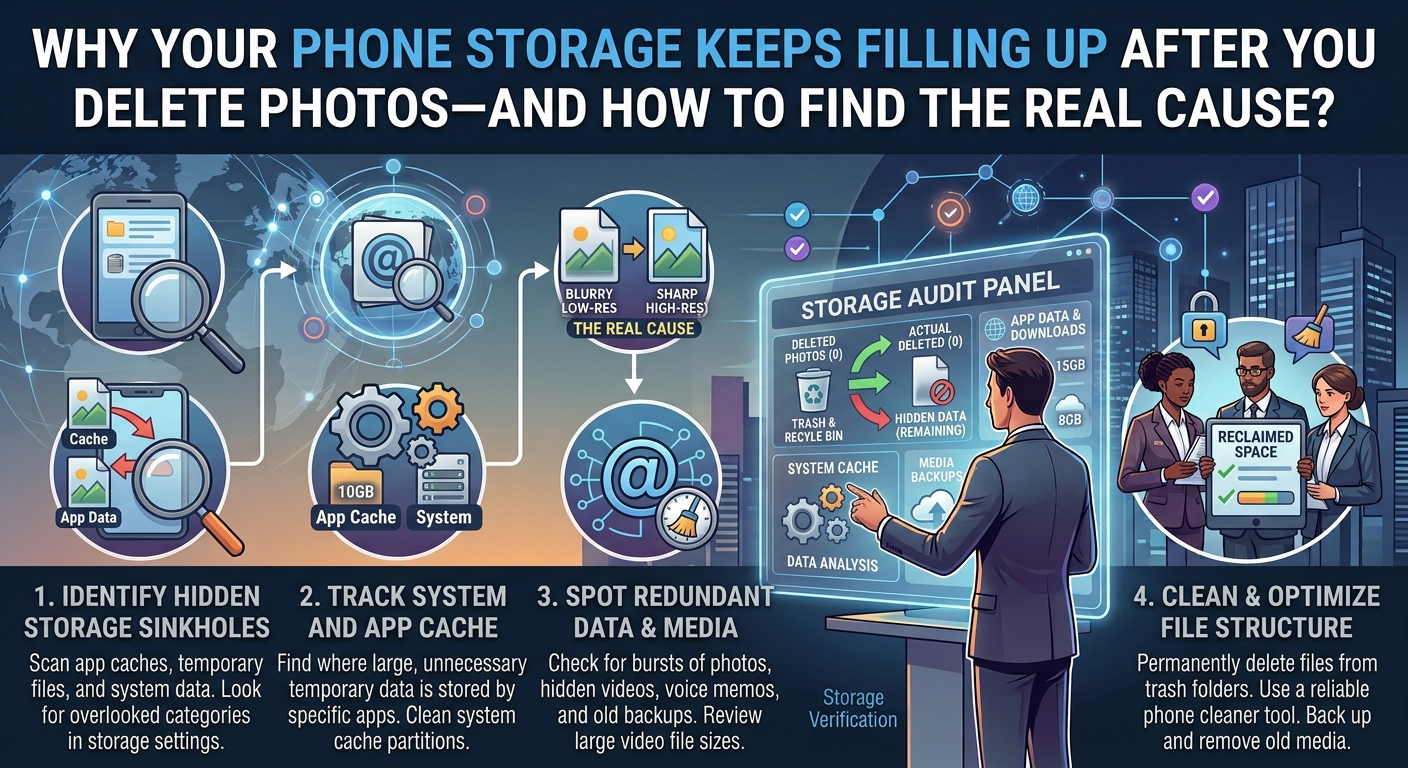
You delete hundreds of photos, watch the storage bar barely move, and then a few days later your phone is full again.
It can feel like the phone is putting the files back.
Usually, that is not what is happening.
The more likely explanation is that photos were only one part of the storage problem. Your phone may still contain deleted items in a trash or Recently Deleted area, large videos, messaging attachments, downloaded files, offline content, app data, cached files, or copies created by other apps.
There is another possibility that causes even more confusion: you may have deleted photos from your cloud library rather than simply removing local copies from the phone.
The good news is that you can usually find the real cause without randomly deleting things.
The key is to check the storage breakdown first, identify the category that is actually growing, and only then decide what to remove.
First, Check What Is Actually Using Your Storage
Before deleting another photo, open your phone’s storage settings.
On Android, the exact menu varies by manufacturer, but Google’s current guidance starts with Settings → Storage, where you can select a storage category and investigate what is consuming space. Some features depend on the Android version and device.
On an iPhone, go to:
Settings → General → iPhone Storage
Apple uses this screen to show how much device storage remains and how that storage is being used.
This first check is important because it changes the question.
Instead of asking:
“Why didn’t deleting my photos work?”
you can ask:
“Which category is actually filling my phone?”
That distinction can save you from deleting photographs that were never the main problem.
If Photos Still Takes Up Most of the Space
If Photos or your photo library remains one of the largest categories, don’t immediately assume that the phone failed to delete your pictures.
There are several things to investigate.
Start with Recently Deleted or Trash.
Deleted photographs may not disappear permanently right away.
On iPhone, deleted photos and videos remain in Recently Deleted for 30 days unless you permanently remove them sooner.
On many Android devices, deleted photos can also remain in a trash or recycle-bin area. Google explains that Gallery trash behavior can vary by device, while its current Android Gallery guidance describes a 30-day trash period.
So if you deleted 10 GB of photographs but those items are still sitting in a trash folder, you should not expect the full amount of storage to become available immediately.
Check Recently Deleted on iPhone
Open:
Photos → Collections → Utilities → Recently Deleted
Review the contents before permanently removing anything.
If you’re certain that the photos are no longer needed and you have a backup where appropriate, you can permanently delete them.
Be careful here.
Permanent deletion removes your recovery option.
Apple specifically warns that once photos are permanently deleted from Recently Deleted, they cannot be recovered through that album.
Check Trash on Android
The location depends on the phone and gallery app.
Look inside your Gallery or Photos application for Trash, Bin, or Recently Deleted.
On Samsung Galaxy devices, for example, Samsung’s current documentation explains that deleted files can be moved to the Recycle bin, although availability and menu names can vary by model and software version.
Do not empty the trash simply because you want to see a bigger storage number.
First make sure you do not need anything inside it.
Your Phone May Be Full of Videos, Not Photos
This is one of the easiest problems to overlook.
A few hundred ordinary photographs might consume less space than a small number of high-resolution videos.
Think about the videos you have accumulated:
A long family recording.
Screen recordings.
Downloaded social-media videos.
Camera videos you forgot about.
Messaging-app videos.
4K recordings.
Edited copies of videos.
A storage screen may group photos and videos together, making it easy to think that deleting photographs should solve the problem.
It may not.
Open your photo library and look specifically for large videos.
If your phone provides a storage-management tool that identifies large files, use that information to decide what deserves attention.
Google Photos also provides storage-management tools that can surface categories such as large videos, screenshots, and blurry photos.
Before deleting a large video, open it.
Do not trust the thumbnail alone.
Make sure it is genuinely unnecessary and that any important copy has been preserved.
Messaging Apps Can Quietly Consume Huge Amounts of Storage
If your photos are no longer the main problem, messaging apps should be high on your list.
Think about how many photographs, videos, voice recordings, documents, stickers, and other attachments you receive.
One busy group chat can accumulate a surprising amount of media.
You might delete 2,000 photos from your Camera folder while leaving years of messaging attachments untouched.
That is why the storage screen matters.
If a messaging app appears unusually large, open its storage-management area and investigate before deleting anything.
On iPhone, Apple’s Messages app can show conversations and attachments, and Apple also provides options for deleting attachments or older messages. Deleted messages and attachments can remain in Recently Deleted for up to 30 days.
The exact process differs between messaging applications, so avoid giving a third-party app permission to delete everything simply because it advertises a quick cleanup.
Downloads Are Another Common Culprit
Your Downloads folder can become a storage junk drawer.
You may have old:
PDF files.
ZIP archives.
Videos.
Images.
Documents.
Installer files.
Repeated copies of files.
Files downloaded for a task months ago.
Samsung’s current support documentation, for example, notes that downloaded content is stored under the Downloads category in My Files and can be reviewed from there.
Android’s own storage guidance also recommends reviewing downloaded files and deleting files you no longer need.
This is one of the safer areas to inspect because you can normally see exactly what the files are before deleting them.
Still, don’t delete an unfamiliar file just because its name looks strange.
Some applications depend on files stored in their own directories.
Offline Downloads Can Be Much Larger Than You Expect
Streaming services can also occupy substantial local storage.
You might have downloaded:
- Movies
- TV episodes
- Music
- Podcasts
- Maps
- Web pages
- Documents
- Other offline content
These files are often invisible when you look only at your camera photos.
If you frequently download content for offline use, check the storage section of the relevant apps.
Look for downloaded or offline media.
If you no longer need something offline, removing the download is often preferable to deleting the application or changing unrelated settings.
App Cache Is Not the Same as Your Personal Files
Another common source of confusion is app cache.
An app can store temporary files to make certain operations faster.
Over time, those files can become sizable.
But that does not mean you should install a random “phone cleaner” and let it wipe every cache.
The safer approach is to first identify which app is using the storage.
Then check what cleanup options the operating system or application itself provides.
On Android, the exact options vary by phone and Android version.
If an application has grown unexpectedly large, check its storage information before deciding what to do.
If you are unsure what a category means, do not delete it just because it occupies space.
The goal is to understand the storage problem, not simply make the number smaller.
Some Apps Keep Their Own Copies of Photos
This is particularly important if you use editing, social-media, scanning, file-management, or messaging applications.
You might have one photograph in your main photo library and another copy saved by an application.
For example, you could edit a photograph and end up with:
Original photo
plus
Edited export
plus
Downloaded copy
plus
Shared copy
plus
Screenshot
They may all look nearly identical.
Deleting one from the main Photos app does not necessarily remove every other copy.
If storage keeps returning after a photo cleanup, look at the applications that handle large amounts of media.
Cloud Storage and Phone Storage Are Different Things
This distinction causes a lot of unnecessary confusion.
Your phone has local storage.
Your Google Account, iCloud account, or another cloud service has cloud storage.
They are related, but they are not the same storage pool.
For example, Google Photos can remove backed-up copies from your Android device while leaving those photographs available in Google Photos. Google specifically provides a Free up space on this device function for this purpose and warns users to confirm that their photos are backed up first.
This can be useful when your phone is full but your cloud library is already safely backed up.
However, don’t assume that every photo shown in Google Photos has necessarily been backed up.
Check the backup status before removing local copies.
Be Especially Careful With iCloud Photos
iPhone users have another important consideration.
If iCloud Photos is enabled, deleting a photograph from one device can delete it from other devices using the same Apple Account and iCloud Photos. Apple says deleted photos remain in Recently Deleted for 30 days unless permanently removed sooner.
That means:
Deleting a photo from your iPhone is not necessarily just deleting one local copy.
It can be a synchronized library action.
So if your goal is simply to reduce the amount of space used on your iPhone, don’t start deleting random photographs from the Photos app.
First understand how your iCloud Photos library is configured.
Apple also explains that iCloud Photos uses both iCloud storage and device storage, and recommends keeping backup copies of the library.
If You Use Google Photos, Don’t Confuse “Delete” With “Free Up Space”
Google Photos provides a specific feature for freeing device storage.
That is different from simply deleting photographs from the Google Photos library.
Google’s current instructions say that Free up space on this device removes safely backed-up photos and videos from the phone while keeping them available in Google Photos.
That can be exactly what you want if the problem is local phone storage.
But it is important to understand the difference before tapping a delete button.
Google also warns that deleting items directly from Google Photos can affect the backed-up library and, depending on backup configuration, other devices.
If you are trying to free local storage rather than erase your cloud library, use the appropriate device-storage option instead of treating every delete action as equivalent.
What If the Storage Number Hasn’t Updated Yet?
Sometimes the storage display does not immediately reflect everything you’ve just changed.
After deleting a large amount of data, give the phone some time to finish processing.
You can also:
- Close the relevant app.
- Reopen the storage screen.
- Restart the phone if the numbers appear obviously stale.
- Check the storage category again.
Don’t immediately start deleting another large batch just because the number hasn’t changed yet.
You could end up removing far more than you intended.
The “System Data” or “Other” Category Can Be Confusing
iPhone users may encounter categories such as System Data, while Android phones may use different names for system or miscellaneous storage.
These categories can contain data that does not fit neatly into obvious personal-file categories.
The important thing is not to assume that every gigabyte in a vague category represents disposable junk.
Some of it may be required by the operating system or applications.
If the category is unusually large, investigate what the phone itself recommends before using aggressive cleanup tools.
Avoid manually deleting hidden system folders unless you know exactly what the files are and why they can safely be removed.
A storage problem is not worth turning into a software problem.
Storage Can Fill Up Again Because You Keep Creating New Data
Sometimes nothing is broken.
You really did free 10 GB.
Then you used 10 GB again.
This happens surprisingly easily.
A few large videos.
Several offline movies.
A major game update.
A messaging-app media download.
A system update.
A batch of high-resolution photographs.
A large screen recording.
If your storage drops again after a cleanup, compare the storage categories instead of assuming the deleted files returned.
Take a screenshot of the storage screen before cleaning.
Then check it again later.
This gives you a simple way to see which category actually grew.
A Simple Storage Investigation Method
If your phone keeps filling up, don’t randomly delete files.
Use this sequence.
Step 1: Record the storage situation
Open the phone’s storage screen and note:
Total capacity
Available space
Largest categories
Apps using the most storage
You don’t need complicated software.
A simple screenshot can be enough.
Step 2: Delete nothing yet
This is important.
First diagnose the problem.
If Photos represents only a small percentage of your storage, deleting more photos is probably not the right solution.
Step 3: Investigate the largest category
If videos are large, inspect videos.
If messaging is large, inspect attachments.
If downloads are large, inspect Downloads.
If one application is unusually large, investigate that application.
Follow the evidence.
Step 4: Check trash and Recently Deleted
Look at the photo app, file manager, and other relevant applications.
You may discover that deleted files are still waiting for permanent removal.
Step 5: Check cloud synchronization
Determine whether your photos are stored locally, in the cloud, or both.
This prevents you from deleting the wrong copy.
Step 6: Remove unnecessary files in small batches
Do not start with thousands of files.
Delete a small amount.
Then check the storage screen again.
Step 7: Watch what happens afterward
If storage begins filling again, check which category increased.
That category is your clue.
How to Find the Real Cause When Storage Keeps Coming Back
Suppose you free 8 GB and three days later only 1 GB remains.
Don’t repeat the same cleanup.
Instead, compare your storage categories.
Maybe Photos increased by only 300 MB.
Maybe an app increased by 2 GB.
Maybe downloaded videos increased by 3 GB.
Maybe a messaging application gained another 1.5 GB.
Now you have a real lead.
This is the difference between cleaning storage and diagnosing storage.
Cleaning removes files.
Diagnosis tells you why the phone keeps running out of space.
A Useful Test: Track Storage for a Few Days
If the problem keeps happening, create a simple record.
On Monday, note the storage categories.
On Wednesday, check again.
On Friday, check again.
You might discover that one application grows rapidly even though you haven’t added many personal files.
Or perhaps your camera videos are responsible.
Or your messaging groups are constantly downloading media.
This small experiment can reveal the pattern without requiring special software.
When You Should Not Delete Anything
There are situations where the safest action is to stop.
Don’t delete files you cannot identify.
Don’t remove photographs before confirming your backup.
Don’t permanently empty a trash folder just to make the storage number look better.
Don’t delete cloud-synchronized photographs without understanding what the deletion will affect.
Don’t manually remove operating-system files.
And don’t give an unknown cleanup application broad access to your personal files simply because it promises to free several gigabytes.
If the storage problem is serious and the cause remains unclear, it is better to investigate further than to turn a storage shortage into data loss.
What to Do If Your Phone Is Almost Completely Full
If you have almost no free space, start with files that are both large and easy to verify.
Large downloaded videos are often easier to evaluate than personal photographs.
Old offline movies can be removed from their source applications.
Unneeded downloads can be reviewed.
Unused applications can be removed or, on supported Android devices, archived. Google says Android’s app-archiving feature can remove the app software, permissions, and temporary files while retaining the app icon and data so it can be restored later.
If photographs are the main problem, verify their backup status first and then use the appropriate photo-storage management tools.
Do not start deleting irreplaceable family photographs simply because the phone is showing a red storage warning.
The Safest Way to Prevent the Problem From Returning
Once you’ve found the cause, prevention becomes much easier.
If large videos are the problem, review video recordings periodically.
If downloads are the problem, clean the Downloads folder occasionally.
If messaging attachments are the problem, review large conversations.
If offline media is the problem, remove downloads you no longer need.
If backed-up photos are filling local storage, use the appropriate device-space feature instead of manually deleting photographs from your cloud library.
If one application repeatedly grows to an unreasonable size, investigate that application specifically.
The goal is not to keep your phone almost empty.
You simply want enough free space that normal updates, photos, downloads, and applications can continue working without constant warnings.
Final Thoughts
When phone storage keeps filling up after you’ve deleted photos, the answer is usually not to delete even more photos.
First find out what is actually using the space.
Check the storage breakdown.
Look at Recently Deleted or Trash.
Inspect videos.
Review messaging attachments.
Check Downloads.
Look at offline media.
Investigate unusually large applications.
Understand whether your photos are stored locally, in the cloud, or both.
Most importantly, separate device storage from cloud storage.
Google provides a dedicated Free up space feature for removing safely backed-up photos from an Android device, while Apple provides storage information through iPhone Storage and keeps deleted photos in Recently Deleted for a limited period.
Once you stop treating every storage warning as a photo problem, the situation becomes much easier to diagnose.
Your phone is usually telling you where the space went.
You just need to look at the right category.
Frequently Asked Questions
Why does my phone still show low storage after deleting hundreds of photos?
Deleted photos may still be in Recently Deleted or Trash. However, the bigger issue may be something else entirely, such as videos, messaging attachments, downloads, offline media, apps, or app data. Check the storage breakdown before deleting more files.
Does deleting photos from Google Photos free phone storage?
It depends on what action you take. Google Photos provides a Free up space on this device feature that removes safely backed-up local copies while keeping them available in Google Photos. Simply deleting photos from Google Photos can have broader effects, especially when backup and synchronization are enabled.
Why is my iPhone storage still full after deleting photos?
Check Recently Deleted first. iPhone also stores many other types of data, including apps, messages, downloads, and system-related data. Go to Settings → General → iPhone Storage to see which categories are actually using the space.
Does emptying Recently Deleted immediately free storage?
It can remove those deleted items permanently, but the amount of recovered storage depends on what was actually stored there and how the device calculates storage. Make sure you no longer need anything before permanently emptying the folder.
Why does my storage keep increasing every few days?
Something is probably generating or downloading new data. Compare the storage categories over several days to identify what is growing. Common causes include videos, messaging attachments, offline media, application data, downloads, and new photographs.
Should I install a phone-cleaning app?
Usually, start with the storage-management tools already provided by your phone and the applications you use. They give you more control and reduce the need to grant a third-party cleaner access to your personal files.
Sources and Further Reading
- Apple Support — iPhone photo deletion, Recently Deleted, iCloud Photos, and device storage.
- Google Android Help — checking storage and freeing space on Android devices.
- Google Photos Help — freeing device space after confirming photo backups.
- Google Photos Help — managing Google Photos storage.
- Samsung Support — finding and managing files on Galaxy devices.