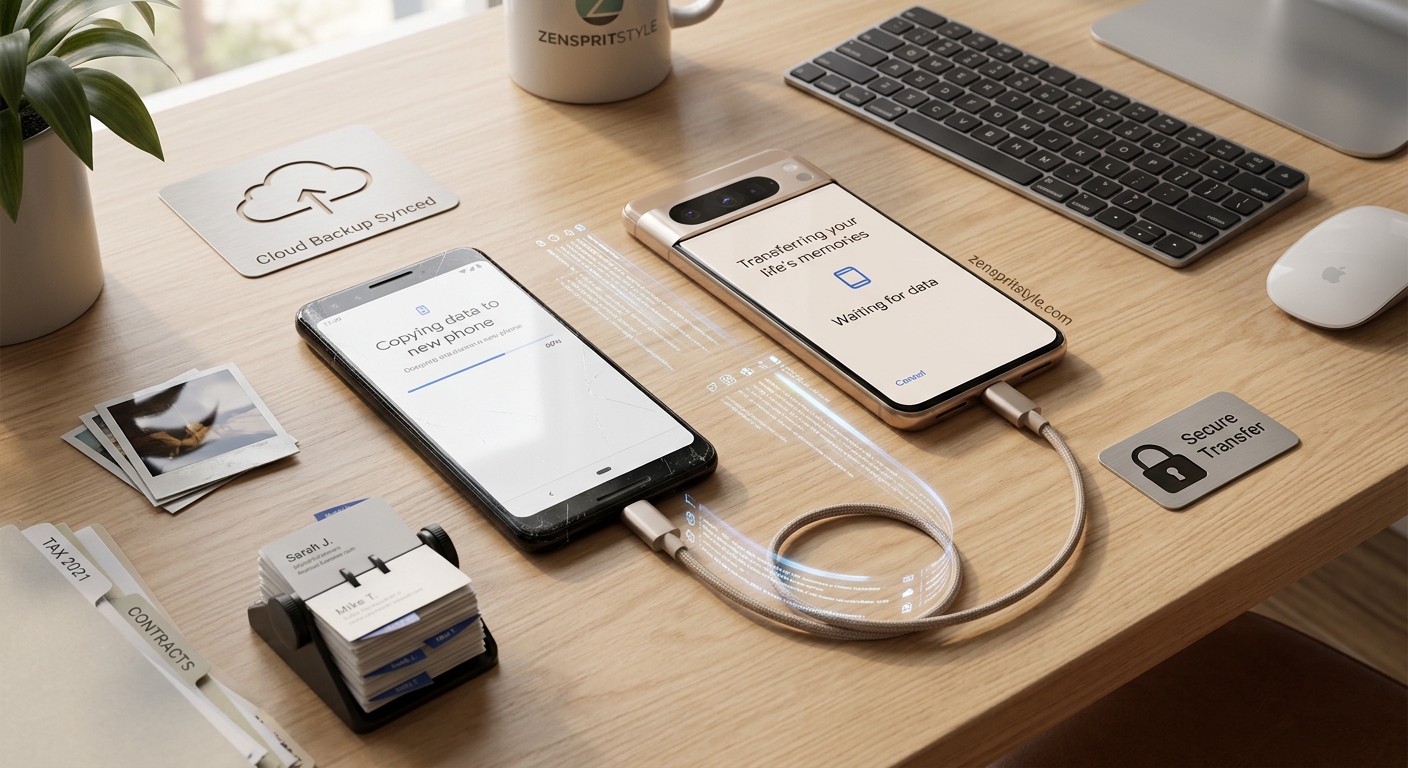
Getting a new phone can make the actual transfer look easier than it really is. A setup screen may offer to copy your apps, photos, contacts, messages, and settings, but that does not necessarily mean every piece of information on the old phone will arrive exactly as it was.
The bigger risk is starting the transfer before you know what is actually stored on the old phone.
Some information may already be synchronized with an account. Other files may exist only on the device. Some apps restore their own data, while others require a separate sign-in or transfer process. Even contacts can be split between a cloud account, the phone itself, and a SIM card.
That is why the safest approach is to check the old phone before you start moving anything.
This guide walks through the checks that matter most, explains why they matter, and shows how to verify the new phone before you erase or trade in the old one.
Important: Menu names and transfer capabilities vary between Android phones, iPhones, manufacturers, and software versions. The instructions below describe the general process rather than claiming that every phone has identical options.
1. Do Not Erase the Old Phone Yet
This is the most important rule.
Keep the old phone available until you have checked the new one.
A transfer can appear successful while something important is still missing. You might discover later that an old photo folder was never synchronized, an app requires a separate login, or a locally stored document did not move.
Google specifically recommends confirming that your data has been copied before clearing an old Android device for recycling, donation, or trade-in.
The same principle applies regardless of phone brand.
Think of the old phone as your backup copy until the new phone has been inspected.
Do not factory-reset it simply because the new phone displays your usual home screen.
2. Check Which Account Is Actually Storing Your Data
Before transferring anything, identify the main account connected to the old phone.
On Android, this may be a Google Account. On an iPhone, it will commonly be an Apple Account used with iCloud.
This matters because some information is synchronized through an account rather than copied directly from one phone to another.
For example, Google says Android backups can include items such as apps and app data, call history, contacts, device settings, and SMS/MMS messages. However, not every app can back up or restore all of its settings and data.
So do not make the assumption:
“It’s on my old phone, therefore the transfer will copy it.”
Instead ask:
“Where is this information actually stored?”
That question becomes particularly important for photos, contacts, notes, documents, messaging apps, password managers, and authentication apps.
3. Check the Old Phone’s Backup Status
Before beginning the migration, look at the backup settings on the old phone.
On Android, Google currently provides a backup area where you can review backup details and manually start a backup. Google notes that a backup can take up to 24 hours in some circumstances, so starting this check immediately before the transfer is not always enough.
The useful question is not simply:
“Is backup turned on?”
Instead, check what was actually backed up.
Look for information such as:
- device data
- apps and app data
- contacts
- messages
- call history
- device settings
- photos and videos
The exact categories depend on the platform and services you use.
Why this matters
A backup setting being enabled does not mean that every file on your phone is necessarily included.
Google explicitly notes that not all apps can back up or restore all settings and data.
That is one reason a direct transfer and a cloud backup should not be treated as identical things.
4. Check Your Photos and Videos Separately
Photos are one of the easiest things to overlook because a new phone may show some pictures almost immediately while other files remain elsewhere.
If you use Google Photos, check whether the photos and videos you care about have actually been backed up.
Google says backed-up photos and videos can be accessed from other devices when you sign in to the same Google Account. It also notes that Google Account storage is shared across services such as Google Photos, Google Drive, and Gmail.
That means storage capacity can matter before migration.
If your cloud account is full, do not assume that every recent photo has been uploaded simply because older photos are visible on another device.
A useful check is to compare the newest photos on the old phone with what is visible in the relevant cloud photo service.
Pay particular attention to:
- screenshots
- downloaded pictures
- camera photos
- videos
- images received through messaging apps
- edited copies
- photos stored in non-default folders
A photo appearing somewhere in a gallery does not automatically tell you where its original file is stored.
5. Check Contacts Before You Move the SIM
Contacts deserve a separate check because they can exist in several places.
You might have contacts synchronized with:
- a Google Account
- an Apple Account
- another email account
- the phone’s local storage
- a SIM card
- a third-party contact service
On Android, Google says contacts saved to a Google Account can automatically sync to a new Android device after signing in. Contacts stored elsewhere may require a separate import or transfer.
Before switching phones, open your contacts and look for a few important people.
Then determine which account or storage location those contacts belong to.
This is much safer than discovering several days later that an old contact list was stored locally.
6. Make Sure You Can Sign In to Your Important Accounts
A phone transfer is also an account-access problem.
Before leaving the old phone behind, make sure you know how to access the accounts you actually use.
Check important accounts such as:
- primary email
- Google or Apple Account
- password manager
- messaging services
- cloud storage
- banking or payment apps
- work or school accounts
- social media accounts
- important subscription services
Do not solve this by writing passwords into an unsecured note or sending them to yourself through an ordinary messaging app.
If you use a password manager, make sure you know the correct master-password or recovery process before moving to the new phone.
Also remember that some accounts use two-factor authentication.
If your authentication method depends on the old phone, verify the recovery or transfer process before wiping that device.
This is one of those checks that can save much more time than it takes.
7. Check Your Messaging Apps Separately
Do not assume that moving the app means moving every conversation.
Messaging services can have their own backup and transfer systems.
WhatsApp is a good example. Google includes WhatsApp backups among the backup data it documents for Android, and Google also notes that Android WhatsApp backups now count toward Google Account storage.
The correct process can also depend on whether you are moving:
Android → Android
iPhone → iPhone
Android → iPhone
or
iPhone → Android.
Cross-platform transfers can have additional limitations.
For example, Google’s current documentation for moving from an iPhone to Android lists different data categories and explicitly identifies information that may not transfer, including some iCloud-stored photos and certain app-related purchases or data.
So if a messaging app contains conversations you cannot afford to lose, check that service’s own transfer instructions rather than relying entirely on the phone’s general migration tool.
8. Check Your Passwords and Passkeys
Passwords are easy to forget because your old phone may have been handling the work for you.
Before moving, check whether your passwords are stored in:
- a password manager
- Google Password Manager
- iCloud Keychain
- a browser
- an individual application
Passkeys deserve particular attention because they are not simply ordinary passwords copied into a text file.
If you are changing ecosystems, check the official instructions for the password or passkey service you use.
Do not assume that every credential will appear automatically on the new phone.
9. Check Your Two-Factor Authentication Apps
This deserves its own check rather than being hidden under “accounts.”
If you use an authenticator app for login codes, determine how its accounts are transferred or restored.
Before wiping the old phone, verify that you have a working method to authenticate into important accounts from the new device.
If an account offers recovery codes, make sure you have access to them through the account’s legitimate recovery system.
Never share authentication codes with another person simply because they claim to be helping with the phone transfer.
10. Check Important Files Outside Your Normal Photo Gallery
Look beyond the camera roll.
Open the file manager on your old phone and check for documents or folders you may have forgotten about.
Depending on how you use your phone, these could include:
- PDFs
- downloaded documents
- work files
- scanned documents
- recordings
- exported chats
- offline files
- downloaded videos
- spreadsheets
- ZIP files
- files saved by specific apps
A general device migration may handle many common file types, but you should not treat the transfer process as a guarantee that every unusual file or app-specific folder will be reproduced exactly.
If a file is important, make sure you know its location and have a second copy before deleting anything.
11. Check Notes and Other App-Specific Data
Notes are another common trap.
You might use:
- Apple Notes
- Google Keep
- Microsoft OneNote
- a manufacturer’s notes app
- a third-party notes application
The important question is whether the notes are synchronized to an account or stored locally.
Open the service from another device or its official web interface where applicable.
If the important notes are visible there, you have stronger evidence that they are synchronized rather than existing only on the old phone.
The same thinking applies to:
- voice recordings
- calendar entries
- task lists
- reading apps
- drawing apps
- offline maps
- game saves
- specialized work applications
Do not judge data safety by whether an app’s icon appears on the new phone.
An installed app and its historical data are two different things.
12. Check Storage on the New Phone
Before transferring a large amount of data, compare the available storage on the two devices.
Suppose the old phone contains hundreds of gigabytes of photos, videos, downloads, and app data, while the new phone has significantly less storage.
A complete local copy may not be possible.
This is where you need to decide what should remain:
on the phone
and what can remain:
in the cloud or another backup location.
Do not start deleting old files just to make the transfer fit until you have confirmed that another safe copy exists.
A smaller new phone is not automatically a problem, but it does require a different migration strategy.
13. Check the Phone-to-Phone Transfer Method
Once the important data has been checked, choose the official transfer method appropriate for your devices.
For a new iPhone, Apple’s Quick Start can transfer many apps, settings, and content from an existing iPhone. Apple recommends keeping the devices near each other and connected to power during the migration.
For Android, Google’s current setup guidance supports transferring data from an old device during the new-phone setup process, with options depending on the devices involved. Google also warns that some steps vary by device.
That last point matters.
A Samsung phone, Pixel, Motorola phone, Xiaomi phone, and other Android devices may not present exactly the same menus.
Use the official transfer process for your particular devices rather than following instructions written for a different manufacturer’s interface.
14. Keep Both Phones Charged
A transfer is a poor time to discover that the old phone has 8% battery remaining.
Charge both devices before starting.
For larger migrations, keeping them connected to power is sensible.
Apple specifically recommends keeping devices near each other and plugged into power during a Quick Start migration.
Android’s guidance likewise recommends charging the devices before beginning the transfer.
Also make sure the connection is stable.
If you are using a cable, use a suitable cable rather than assuming every USB cable supports the same transfer capabilities.
If using wireless transfer, keep the devices close and follow the instructions displayed by the setup process.
15. Do Not Judge Success by the Home Screen
This is an important verification step.
The new phone can look “finished” while you still have missing information.
After the transfer, check several categories deliberately.
Contacts
Open contacts and search for several people you know should be there.
Photos
Check older photos, recent photos, videos, screenshots, and important albums.
Messages
Open recent and older conversations where their history matters.
Files
Search for several important documents rather than checking only one folder.
Notes
Open important notes and confirm their contents.
Calendar
Check upcoming events and recurring appointments.
Apps
Open the applications you actually depend on rather than merely checking that their icons exist.
Accounts
Confirm that important services are signed in correctly.
Authentication
Test your legitimate authentication method before the old phone is erased.
This is a much better test than simply asking whether the new phone “looks right.”
16. Check for Missing Data Before Deleting Anything
If something is missing, stop.
Do not immediately factory-reset the old phone.
First determine where the missing information was stored.
For example:
A missing photo could be in a different folder, cloud service, or account.
A missing contact could have been stored on the SIM or another account.
A missing note could belong to a different notes service.
A missing app’s data may require the app’s own backup or sign-in process.
A missing conversation may require the messaging service’s dedicated migration procedure.
The goal is to diagnose the missing data rather than repeatedly restarting the entire transfer.
17. Check the New Phone Before You Factory-Reset the Old One
At this stage, perform one final comparison.
Ask yourself:
- Can I access my important accounts?
- Are my important contacts present?
- Are my recent and older photos available?
- Are important videos present?
- Are my messages available?
- Are important files present?
- Are notes available?
- Are calendars correct?
- Do critical apps work?
- Can I authenticate into important accounts?
- Do I have another backup of irreplaceable information?
If the answer to an important question is “I don’t know,” keep the old phone.
There is no prize for resetting it early.
18. Only Then Prepare the Old Phone for Trade-In or Recycling
Once you are satisfied that the new phone contains what you need, you can prepare the old device for disposal, recycling, donation, or trade-in.
Google’s guidance specifically says to clear the old device only after confirming that the data has been copied.
The exact factory-reset process depends on the device.
Before doing it, make sure you have also considered account protection features and any requirements from your carrier or trade-in provider.
The important sequence is:
Transfer → verify → resolve missing data → verify again → erase.
Not:
Transfer → immediately erase.
A Simple Pre-Transfer Checklist
Before starting the migration, check:
- Old phone is charged.
- New phone has enough available storage.
- You know the account used for backup and synchronization.
- A recent backup has completed.
- Important photos and videos are backed up.
- Important contacts are synchronized or otherwise copied.
- Important files have another copy.
- Messaging apps have been checked.
- Passwords and passkeys are accessible.
- Two-factor authentication has been considered.
- Important notes and recordings are available.
- You know how to access critical accounts.
- Both phones are ready for the official transfer process.
After the transfer:
- Check contacts.
- Check photos and videos.
- Check messages.
- Check important files.
- Check notes.
- Check calendar.
- Open important apps.
- Confirm account access.
- Confirm authentication.
- Keep the old phone until everything important has been verified.
What If You Are Moving From Android to iPhone or iPhone to Android?
Cross-platform migration deserves extra caution.
A transfer between two phones from the same ecosystem is usually easier because the operating systems and account services are designed to work together.
Moving between ecosystems can involve additional steps.
For example, Google’s current documentation for moving from iPhone to Android identifies differences in what can be transferred and specifically notes categories that may not move automatically.
The same principle works in reverse: do not assume that an Apple-to-Android or Android-to-Apple transfer will reproduce every app, setting, password, purchase, or piece of application data.
Before switching platforms, make a list of the things you cannot afford to lose and verify each one individually.
That small amount of preparation is usually worth far more than trying to recover missing data after the old phone has been erased.
The Safest Way to Think About Phone Migration
Moving to a new phone is not really one transfer.
It is a collection of smaller transfers:
accounts → contacts → photos → messages → files → apps → settings → authentication → app-specific data.
Each category can have a different storage location and different transfer rules.
That is why the safest approach is not to ask:
“Did everything transfer?”
Ask:
“Where was each important type of data stored, and have I verified it on the new phone?”
That change in thinking makes the process much more reliable.
A transfer tool can do much of the work for you. It should not replace the final verification.
Final Takeaway
The safest time to discover that something was missing from your old phone is before you erase the old phone.
Back up first. Check where important information is stored. Pay special attention to photos, contacts, messages, files, passwords, authentication, and app-specific data. Then use the official transfer method for your particular devices.
Afterward, verify the information you actually care about instead of assuming that a successful setup screen means everything arrived.
Only when the new phone has passed that check should the old phone be reset.
Sources and Further Reading
- Google Android — Switch to a new Android device
- Google — Back up or restore data on your Android device
- Google One — Back up your device
- Google — Back up photos and videos
- Apple Support — Use Quick Start to transfer data to a new iPhone or iPad
- Apple Support — Set up and activate your new iPhone
FAQs
Should I back up my old phone before transferring everything?
Yes. A recent backup gives you another recovery option if the direct transfer fails or something important is missing. On Android, Google provides a backup section where you can review backup details and manually initiate a backup.
How long should I keep my old phone after transferring my data?
Keep it until you have checked the information that matters to you on the new phone. There is no universal number of hours or days that guarantees everything is safe. If you discover an important missing file later, having the old device available can make recovery much easier.
Will every app and its data transfer to my new phone?
No. The result depends on the operating systems, transfer method, and individual app. Google explicitly notes that not all Android apps can back up or restore all settings and data.
Should I erase my old phone immediately after the transfer finishes?
No. First verify important photos, contacts, messages, files, accounts, and app data. Google specifically advises confirming that data has been copied before clearing an old Android device.
What should I check first if something is missing?
First determine where the missing information was stored. Check the relevant cloud account, local folders, app-specific backup, or account synchronization rather than immediately repeating the entire migration.
Is transferring between Android and iPhone different from moving between two phones using the same platform?
Yes. Cross-platform transfers can have additional limitations and different procedures. For example, Google’s current iPhone-to-Android documentation identifies data categories that may not transfer automatically.