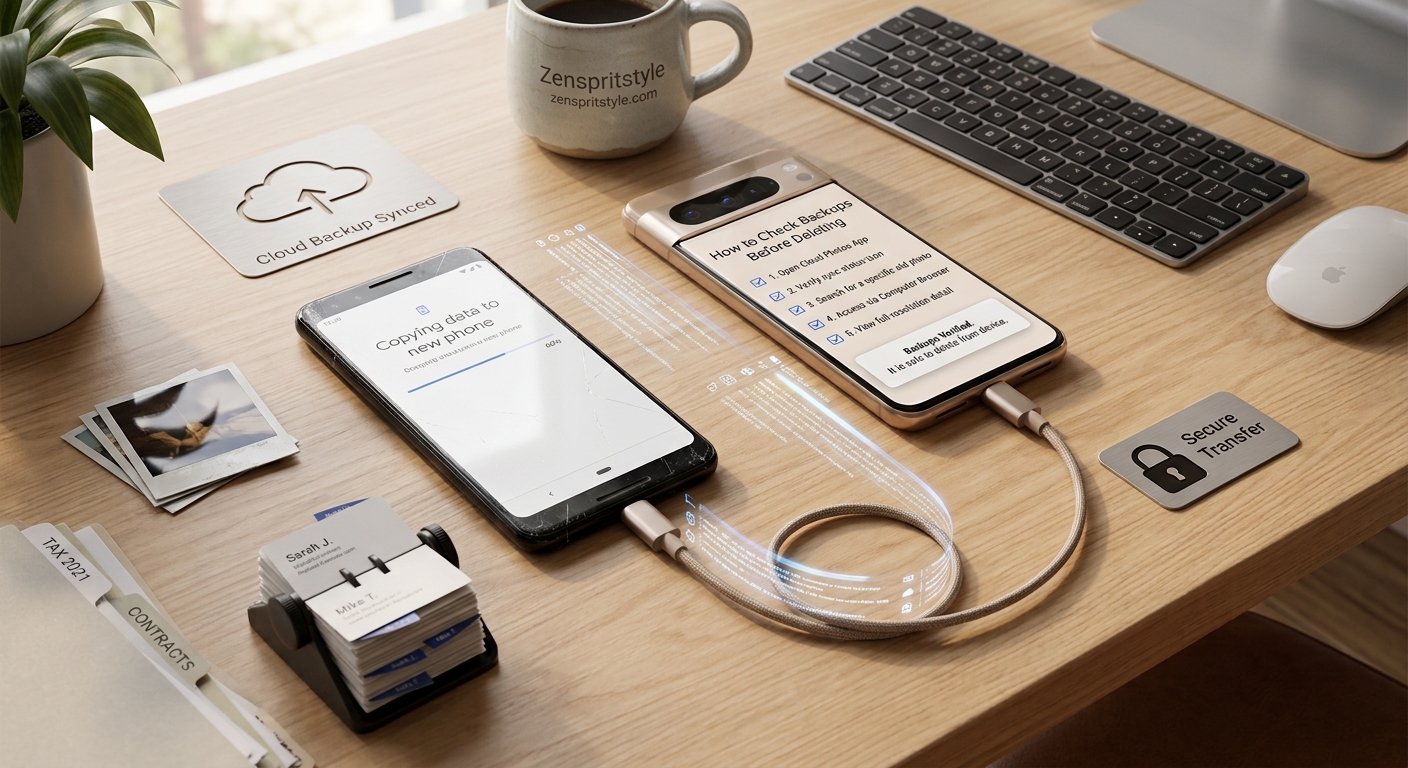
Deleting photos to free up phone storage sounds simple until you realize that the photo you removed might have been the only copy you had.
The confusing part is that a photo can appear in your phone’s gallery while its backup status is unclear. You may also see the same photo in a cloud service without knowing whether the original file has actually finished uploading, which account contains it, or whether deleting the phone copy will also remove the cloud copy.
That is why seeing a photo in Google Photos, iCloud Photos, or another cloud service is not by itself a complete backup check.
Before deleting an important picture, verify three things:
The correct photo is in the cloud. The correct account has access to it. You can still retrieve or view it independently of the phone’s local copy.
The exact screens vary between Android, iPhone, Google Photos, iCloud Photos, and other services, so use the instructions that match your setup.
First, Understand What “Backed Up” Means
A backup is a separate copy that you can rely on if the original on your phone disappears.
This sounds obvious, but cloud photo services can make the distinction confusing.
For example, a photo service may synchronize your library between devices rather than behaving like a simple one-way backup. With some services, deleting a photo from the library can also remove it from synchronized devices.
That means you should not assume:
“I can see it in the cloud, so I can delete it from everywhere.”
The safer question is:
“If I delete this particular photo from my phone, what exactly will happen to the cloud copy?”
The answer depends on the service and the deletion method you use.
Start With the Photos You Cannot Replace
Do not try to verify your entire photo library at once.
Start with a small group of genuinely important photographs.
These might include:
- family photographs
- old photographs that have been digitized
- travel pictures
- important documents saved as photos
- photographs of possessions
- work-related images
- photographs that are not available anywhere else
Choose several files from different dates.
Checking only the newest photo can give you false confidence. A recent upload may have completed successfully while older photos or files in less obvious folders remain unavailable.
Check the Backup Status Before Deleting Anything
If you use a cloud photo service, open its backup or synchronization status.
On Google Photos, for example, the service provides backup information and allows users to check whether photos are backed up. Google also explains that backed-up photos can be accessed from other devices when you sign in to the same Google Account.
The important detail is to check the actual backup status, not just whether the application is installed.
If the application says that backup is still running, do not start deleting important photos.
Wait for the upload to finish.
If it reports that some items have not been backed up, investigate those items before removing anything from the phone.
Check Which Account Contains the Photos
This is an easy step to overlook.
You may have more than one Google Account, Apple Account, Microsoft account, or other cloud account on your devices.
A photo could be associated with one account while you are checking another.
Before deleting anything important, confirm:
Which account is currently being used for the photo service?
Then make sure you know the credentials and recovery method for that account.
For Google Photos, the backed-up library is associated with the Google Account you use with the service. Google states that backed-up photos can be accessed when you sign in to the same account on another device.
This gives you a useful verification method.
Don’t just ask whether the picture is visible.
Ask whether it is visible when you access the correct account independently.
Check a Photo From Another Device
This is one of the most useful practical checks.
Take one important photograph that you are considering deleting.
Then access your cloud photo service from another device.
For example, you could use:
- another phone
- a tablet
- a computer
- the service’s official website
Sign in to the same account.
Find the exact photograph.
If it appears there, you have stronger evidence that the photograph exists independently of the local copy on your original phone.
This is more useful than simply opening the photo application on the same phone.
Why?
Because the same phone can still show a local copy even when the cloud upload has not completed.
The second-device check separates the two.
Check the Original Photo, Not Just a Thumbnail
When verifying an important photograph, open it.
Look at the image carefully.
If the photograph contains important details, make sure those details are actually present.
For example, if you are preserving a photograph of a document, zoom in enough to confirm that the text is readable.
If you are checking an important family photograph, make sure you have located the actual image rather than another edited or compressed copy.
This matters particularly when you have several versions of the same picture.
A library might contain:
- the original
- an edited version
- a cropped copy
- a screenshot
- a downloaded duplicate
Finding “a picture that looks similar” is not necessarily the same as confirming that the important original has been preserved.
Check the Date and File Details When They Matter
For especially important photographs, compare identifying information.
Depending on the service and device, you may be able to inspect details such as:
- date
- time
- location
- file size
- dimensions
- filename
- format
Do not expect every cloud service to preserve every piece of metadata in exactly the same way.
The purpose of this check is simply to distinguish the photograph you care about from a similar-looking duplicate.
If you have several versions, make sure you know which one you are keeping.
Be Careful With “Free Up Space” Features
Cloud photo services sometimes provide features designed to remove local copies after they have been backed up.
These features can be useful, but you should understand what they actually do before using them.
Google Photos, for example, has a “Free up space on this device” function that is specifically designed to remove device copies of photos that have already been backed up. Google explains that these photos remain available in Google Photos and at photos.google.com.
That is different from manually deleting photographs from the Google Photos library.
The distinction is important.
A feature specifically intended to remove local copies after backup can be safer for freeing device storage than randomly deleting photos from the photo library.
Still, read the confirmation screen before proceeding.
Do not assume that two similarly named deletion options have the same effect.
iPhone Users Need to Pay Attention to iCloud Photos
iPhone users should be particularly careful about confusing synchronization with a traditional backup.
Apple’s iCloud Photos system stores photos in iCloud and keeps the library synchronized across devices using the same Apple Account. Apple explains that when iCloud Photos is enabled, changes made to the photo library, including deletions, are reflected across devices.
That means:
Deleting a photo from the synchronized Photos library is not necessarily the same thing as removing only the phone’s local copy.
If your goal is simply to reclaim iPhone storage while keeping the photos in iCloud, Apple’s storage-management options are more appropriate than manually deleting photographs from the library.
Apple’s “Optimize iPhone Storage” option allows full-resolution originals to be stored in iCloud while space-saving versions remain on the iPhone when storage optimization is needed.
So before deleting an iPhone photo, determine whether you are trying to:
remove only the local storage burden
or
delete the photograph from your synchronized photo library.
Those are very different actions.
Android Users Should Check Google Photos Carefully
Android phones can have several different photo-storage arrangements.
You might be using:
- Google Photos
- a manufacturer’s gallery
- another cloud service
- local device storage
- a combination of these
Google Photos can back up photographs to your Google Account, but the important question is whether the specific files you care about have actually completed backup.
Google’s documentation explains that backup status can be checked within Google Photos and that backed-up content is accessible through the account.
Do not assume that because your camera photographs are backed up, every photograph on your phone is backed up.
Downloaded images, screenshots, messaging-app media, and photographs stored in other folders can follow different backup rules depending on your settings.
Check Screenshots and Other Folders
This is where many people get caught.
They check their camera roll, see that recent photographs are backed up, and then delete hundreds of files.
Later they discover that some screenshots or downloaded images were never uploaded.
If those files matter, check the relevant folders individually.
Look for things such as:
Screenshots
Downloads
Messaging-app folders
Edited photographs
Scanned documents
Social-media downloads
Pictures created by other applications
The exact folder names differ between devices.
The point is simple: do not assume that “my photos” means every image stored on the phone.
Check Cloud Storage Capacity
A backup service can only upload data if it has enough available storage.
Google says Google Account storage is shared across Google Photos, Google Drive, and Gmail.
If the account is full, new photographs may stop backing up.
This is particularly important if your phone contains a large collection of videos.
Videos can consume storage much faster than ordinary photographs.
Before deleting local copies, check whether the cloud account has enough available capacity and whether recent uploads have completed.
A backup system that stopped several weeks ago is not much help for photographs you took yesterday.
Verify the Newest Important Photo
One of the best quick checks is to identify a recent photograph that matters.
Take or select a photograph.
Allow the backup process to complete.
Then access the cloud library independently and locate that exact photograph.
This gives you a simple test:
Phone → Cloud → Independent access
If all three steps work, you have demonstrated that the photograph exists outside the phone’s local storage.
For a large library, you can repeat the check with photographs from different periods rather than opening every single image.
Check Older Photos Too
A backup problem may not affect every photograph equally.
Suppose your phone contains ten years of pictures.
The newest photos might be uploading correctly while an older folder was never included in the backup configuration.
Choose samples from different periods.
For example:
- one recent photograph
- one from several months ago
- one older photograph
- one screenshot
- one video
- one photograph stored in an unusual folder
The exact sample is less important than the principle.
Test different types of content instead of testing one ordinary camera photograph and assuming the entire library is safe.
Do a Small Recovery Test for Irreplaceable Photos
For extremely important photographs, go one step further.
Download or otherwise retrieve one verified cloud copy to another device or storage location.
Then open it.
This provides stronger evidence that the cloud copy is actually usable.
You do not necessarily need to perform this with thousands of photographs.
For irreplaceable material, however, having another independent copy is worthwhile.
The basic principle is the classic backup rule:
A file that exists in only one place is still vulnerable.
Cloud storage can protect against phone loss, but it should not automatically be treated as the only copy of your most valuable photographs.
Don’t Delete First and Check Later
This sounds obvious, but it is an easy mistake when your phone is warning that storage is nearly full.
You see:
“Storage almost full.”
Then you start deleting.
A better sequence is:
Identify → verify backup → confirm account → test access → remove local copy → verify again.
That adds a few minutes.
Recovering irreplaceable photographs can take considerably longer—or may not be possible.
What If a Photo Says It Is Not Backed Up?
Stop before deleting it.
First check whether:
- the phone has a working internet connection
- the cloud account has available storage
- backup is enabled
- the correct account is being used
- the photo is in a supported folder
- the backup process is still running
- the application needs to be updated
- the service reports a specific backup error
Do not repeatedly delete and reinstall the photo application as a first response.
Find out why the photograph has not been backed up.
If it is an important file, make another copy to a computer or other trusted storage before troubleshooting anything that could affect the original.
What If the Cloud Copy Exists but Deleting the Phone Photo Also Deletes It?
This is the situation where you need to stop and identify whether the service is operating as a synchronized library.
Do not experiment with an irreplaceable photograph.
Instead, read the official documentation for the service and use its storage-management feature if your goal is to remove only the local copy.
This distinction is particularly important with iCloud Photos because Apple describes it as a synchronized photo library: changes, including deletions, are synchronized across devices using the same account.
Google Photos also provides specific storage-management functionality for removing device copies of backed-up photos.
The safest option depends on which service you use.
A Safer Photo-Deletion Checklist
Before deleting an important photograph from your phone, confirm:
- I know which cloud service I use.
- I know which account contains the photo.
- The photo shows as backed up.
- Backup has finished rather than still being in progress.
- The cloud account has available storage.
- I can find the exact photograph in the cloud library.
- I checked it from another device or independent access method.
- The correct original or important version is present.
- I understand what the deletion option will actually remove.
- I have another copy if the photograph is irreplaceable.
If you cannot confidently check these boxes, do not delete the photograph yet.
What to Do After Removing Local Copies
After using a legitimate storage-management feature or otherwise removing a local copy, check the result.
Confirm that:
- The phone has recovered the expected storage.
- The photograph is still available through the cloud service.
- You can open the photograph normally.
- The correct account is still being used.
- Important photographs were not accidentally removed from the synchronized library.
Do not immediately delete hundreds more files.
Test the process with a small number first.
If everything behaves as expected, continue.
Final Takeaway
The safest way to decide whether a photo can be deleted is not to ask, “Can I see it in the cloud?”
Ask:
“Is this exact photo backed up, is it stored under the account I control, can I access it independently, and do I understand what deleting it from this phone will do?”
That distinction matters.
For ordinary photographs, a quick backup-status and independent-access check may be enough. For irreplaceable photographs, use a more cautious approach and keep another copy.
Most importantly, never use a storage warning as a reason to rush.
Verify first. Delete second.
Sources and Further Reading
- Google Support — Android backup and restore documentation
- Google Photos Help — Backup and storage guidance
- Google Photos Help — Free up space on your device
- Apple Support — iCloud Photos
- Apple Support — Optimize Storage on iPhone
FAQs
How do I know if my photos are really backed up?
Check the backup status in your photo service and then access the same account from another device or its official web interface. Finding the exact photograph there provides stronger evidence that it exists independently of the original phone.
Can I delete photos from my phone after Google Photos backs them up?
You can use Google Photos’ storage-management feature to remove backed-up device copies. Google specifically provides a “Free up space on this device” function for this purpose. Be careful not to confuse that function with deleting photographs from the Google Photos library.
If a photo is in iCloud, can I delete it from my iPhone?
Be careful. iCloud Photos synchronizes the photo library across devices, and Apple says that changes such as deletions are reflected across devices using the same account. If your goal is to save local storage while keeping the photograph in iCloud, use Apple’s storage-optimization approach rather than simply deleting the photo from the synchronized library.
Why are some photos backed up while others are not?
Different folders and file types can have different backup settings, and your cloud account may also have reached its storage limit. Check the backup status, available storage, and the folders containing the missing photographs.
Is seeing my photo on another phone enough to prove it is backed up?
It is good evidence if the other phone is accessing the cloud account rather than simply sharing the same local storage. For important photographs, make sure you know which account the second device is using and verify that the photograph can be opened independently.
Should I keep another copy of my most important photographs?
Yes. Cloud storage provides useful protection, but irreplaceable photographs are safer when they exist in more than one independent location. A second copy can protect you if you lose access to the cloud account or accidentally delete the wrong item.